An annual tradition at Three Rings is DevCamp, an event that borrows from the “hackathon” concept and expands it to a week-long code-producing factory for the
volunteers of the Three Rings development team. Motivating volunteers is a very different game to motivating paid employees: you can’t offer to pay them more for working harder nor
threaten to stop paying them if they don’t work hard enough, so it’s necessary to tap in to whatever it is that drives them to be a volunteer, and help them get more of that out of
their volunteering.
This photo, from DevCamp 2011, is probably the only instance where I’ve had fewer monitors out than another developer.
At least part of what appeals to all of our developers is a sense of achievement – of producing something that has practical value – as well as of learning new things, applying
what they’ve learned, and having a degree of control over the parts of the project they contribute most-directly to. Incidentally, these are the same things that motivate paid
developers, too, if a Google search for studies on the subject is to believed. It’s just that employers are rarely able to willing to offer all of those things (and even if they can,
you can’t use them to pay your mortgage), so they have to put money on the table too. With my team at Three Rings, I don’t have money to give them, so I have to make up for it with a
surplus of those things that developers actually want.
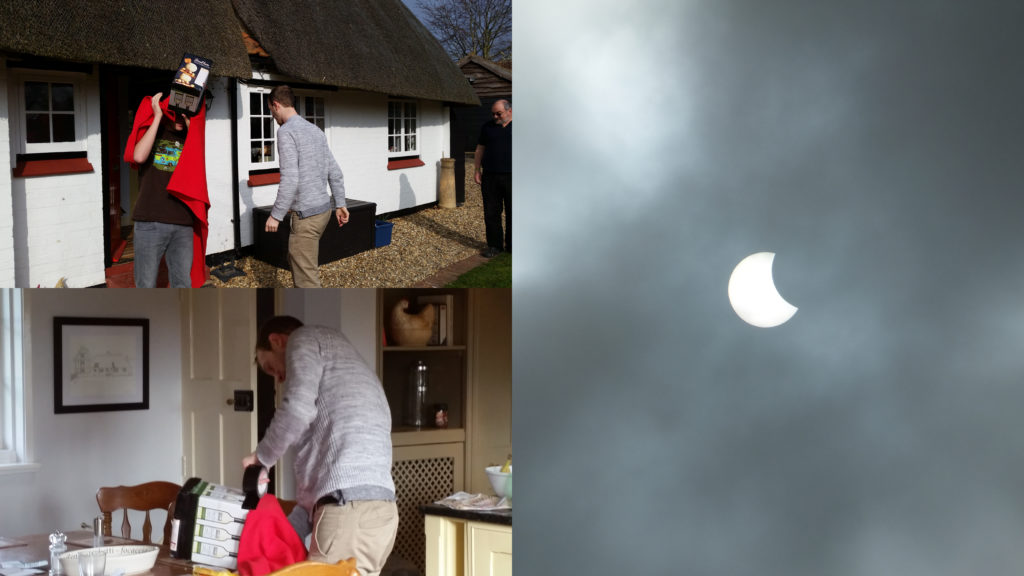
At the 2015 DevCamp, developers used the solar eclipse as an excuse for an impromptu teambuilding activity: making a camera obscura out of stuff we had lying about.
It seems strange to me in hindsight that for the last seven years I’ve spent a week of my year taking leave from my day job in order to work longer, harder, and unpaid for a
voluntary project… but that I haven’t yet blogged about it. Over the same timescale I’ve spent about twice as long at DevCamp than I have, for example, skiing, yet I’ve managed
to knock out several blog posts on that subject. Part of that might be borne out of the secretive nature of Three Rings, especially in its early days (when
involvement with Three Rings pretty-much fingered you as being a Nightline volunteer, which was frowned upon), but nowadays we’ve got a couple of
dozen volunteers with backgrounds in a variety of organisations: and many of those of us that ever were Nightliner volunteers have long since graduated and moved-on to other
volunteering work besides.
Semi-cooperative horror-themed board games by candlelight are a motivator for everybody, right?
Part of the motivation – one of the perks of being a Three Rings developer – for me at least, is DevCamp itself. Because it’s an opportunity to drop all of my “day job” stuff
for a week, go to some beatiful far-flung corner of the country, and (between early-morning geocaching/hiking expeditions and late night drinking tomfoolery) get to spend long days
contributing to something awesome. And hanging out with like-minded people while I do so. I like I good hackathon of any variety, but I love me some Three Rings DevCamp!
The geocaches near DevCamp 2016 were particularly fabulous, though. Like this one – GC4EE6C – part of an Alice In Wonderland-themed series.
So yeah: DevCamp is awesome. It’s more than a little different than those days back in 2003 when I wrote all the code and Kit worked hard
at distracting me with facts about the laws of Hawaii – for the majority of DevCamp 2016 we had half a dozen developers plus two documentation writers
in attendance! – but it’s still fundamentally about the same thing: producing a piece of software that helps about 25,000 volunteers do amazing things and make the world a better place.
We’ve collectively given tens, maybe hundreds of thousands of hours of time in developing and supporting it, but that in turn has helped to streamline the organisation of about 16
million person-hours of other volunteering.
So that’s nice.
An end-of-day “Show & Tell” session at DevCamp 2016.
Oh, and I was delighted that one of my contributions this DevCamp was that I’ve finally gotten around to expanding the functionality of the “gender” property so that there are now more
than three options. That’s almost more-exciting than the geocaches. Almost.
Edit: added a missing word in the sentence about how much time our volunteers had given, making it both more-believable and more-impressive.
As you’re no-doubt aware, Home Secretary Theresa May is probably going to get her way with her “snooper’s
charter” by capitalising on events in Paris (even though that makes no sense), and before long, people working for
law enforcement will be able to read your Internet usage history without so much as a warrant (or, to put it as the UN’s privacy chief put it, it’s “worse than scary”).
Or as John Oliver put it, “This bill could write into law a huge invasion of privacy.” Click to see a clip.
In a revelation that we should be thankful of as much as we’re terrified by, our government does not understand how the Internet works. And that’s why it’s really easy for
somebody with only a modicum of geekery to almost-completely hide their online activities from observation by their government and simultaneously from hackers. Here’s a device that I
built the other weekend, and below I’ll tell you how to do it yourself (and how it keeps you safe online from a variety of threats, as well as potentially giving you certain other
advantages online):
It’s small, it’s cute, and it goes a long way to protecting my privacy online.
I call it “Iceland”, for reasons that will become clear later. But a more-descriptive name would be a “Raspberry Pi VPN Hotspot”. Here’s what you’ll need if you want to build one:
A Raspberry Pi Model B (or later) – you can get these from less than £30 online and it’ll come with an SD card that’ll let it boot Raspbian, which is the Linux
distribution I’ve used in my example: there’s no reason you couldn’t use another one if you’re familiar with it
A USB WiFi dongle that supports “access point” mode – I’m using an Edimax one that cost me under a fiver – but it took a little hacking to make it work – I’ve heard
that Panda and RALink dongles are easier
A subscription to a VPN with OpenVPN support and at least one endpoint outside of the UK – I’m using VyprVPN because
I have a special offer, but there are lots of cheaper options: here’s a great article about
choosing one
A basic familiarity with a *nix command line, an elementary understanding of IP networking, and a spare 20 minutes.
From here on, this post gets pretty geeky. Unless you plan on building your own little box to encrypt all of your home’s WiFi traffic until it’s well out of the UK and
close-to-impossible to link to you personally (which you should!), then you probably ought to come back to it another time.
Here’s how it’s done:
1. Plug in, boot, and install some prerequisites
Plug the WiFi dongle into a USB port and connect the Ethernet port to your Internet router. Boot your Raspberry Pi into Raspbian (as described in the helpsheet that comes with
it), and run:
If, like me, you’re using an Edimax dongle, you need to do an extra couple of steps to make it work as an access point. Skip this bit if you’re using one of the other dongles I listed
or if you know better.
Get OpenVPN configuration files from your VPN provider: often these will be available under the iOS downloads. There’ll probably be one for each available endpoint. I chose the one for
Reyjkavik, because Iceland’s got moderately sensible privacy laws and I’m pretty confident that it would take judicial oversight for British law enforcement to collaborate with
Icelandic authorities on getting a wiretap in place, which is the kind of level of privacy I’m happy with. Copy your file to /etc/openvpn/openvpn.conf and edit it: you may find that you
need to put your VPN username and password into it to make it work.
sudo service openvpn start
You can now test your VPN’s working, if you like. I suggest connecting to the awesome icanhazip.com and asking it where you are (you can use your
favourite GeoIP website to tell you what country it thinks you’re in, based on that):
curl -4 icanhazip.com
Another option would be to check with a GeoIP service directly:
curl freegeoip.net/json/
4. Set up your firewall and restart the VPN connection
Unless your VPN provider gives you DNAT (and even if they do, if you’re paranoid), you should set up a firewall to allow only outgoing connections to be established, and then restart
your VPN connection:
sudo iptables -A INPUT -i tun0 -m conntrack --ctstate RELATED,ESTABLISHED -j ACCEPT
sudo iptables -A INPUT -i tun0 -j DROP
sudo sh -c "iptables-save > /etc/iptables.nat.vpn.secure"
sudo sh -c "echo 'up iptables-restore < /etc/iptables.nat.vpn.secure' >> /etc/network/interfaces"
sudo service openvpn restart
5. Configure your WiFi hotspot
Configure bind as your DNS server, caching responses on behalf of Google’s DNS servers, or another DNS server that you trust. Alternatively, you can just configure your DHCP clients to
use Google’s DNS servers directly, but caching will probably improve your performance overall. To do this, add a forwarder to /etc/bind/named.conf.options:
forwarders {
  8.8.8.8;
  8.8.4.4;
};
Restart bind, and make sure it loads on boot:
sudo service bind9 restart
sudo update-rc.d bind9 enable
Edit /etc/udhcpd.conf. As a minimum, you should have a configuration along these lines (you might need to tweak your IP address assignments to fit with your local network – the “router”
and “dns” settings should be set to the IP address you’ll give to your Raspberry Pi):
start 192.168.0.2
end 192.168.0.254
interface wlan0
remaining yes
opt dns 192.168.0.1
option subnet 255.255.255.0
opt router 192.168.0.1
option lease 864000 # 10 days
Enable DHCP by uncommenting (remove the hash!) the following line in /etc/default/udhcpd:
#DHCPD_ENABLED="yes"
Set a static IP address on your Raspberry Pi in the same subnet as you configured above (but not between the start and end of the DHCP list):
sudo ifconfig wlan0 192.168.0.1
And edit your /etc/network/interfaces file to configure it to retain this on reboot (you’ll need to use tabs, not spaces, for indentation):
Right – onto hostapd, the fiddliest of the tools you’ll have to configure. Create or edit /etc/hostapd/hostapd.conf as follows, but substitute in your own SSID, hotspot password, and
channel (to minimise interference, which can slow your network down, I recommend using WiFi scanner tool on your mobile to find which channels your neighbours aren’t using, and
use one of those – you should probably avoid the channel your normal WiFi uses, too, so you don’t slow your own connection down with crosstalk):
Hook up this configuration by editing /etc/default/hostapd:
DAEMON_CONF="/etc/hostapd/hostapd.conf"
Fire up the hotspot, and make sure it runs on reboot:
sudo service hostapd start
sudo service udhcpd start
sudo update-rc.d hostapd enable
sudo update-rc.d udhcpd enable
Finally, set up NAT so that people connecting to your new hotspot are fowarded through the IP tunnel of your VPN connection:
sudo sh -c "echo 1 > /proc/sys/net/ipv4/ip_forward"
sudo sh -c "echo net.ipv4.ip_forward=1 >> /etc/sysctl.conf"
sudo iptables -t nat -A POSTROUTING -o tun0 -j MASQUERADE
sudo sh -c "iptables-save > /etc/iptables.nat.vpn.secure"
6. Give it a go!
Connect to your new WiFi hotspot, and go to your favourite GeoIP service. Or, if your VPN endpoint gives you access to geographically-limited services, give those a go (you’d be amazed
how different the Netflix catalogues are in different parts of the world). And give me a shout if you need any help or if you have any clever ideas about how this magic little box can
be improved.
There’s a wonderful tool for making web-based “choose your own adventure”-type games, called Twine. One of the best things about it is that it’s so
accessible: if you wanted to, you could be underway writing your first ever story with it in about 5 minutes from now, without installing anything at all, and when it was done you could
publish it on the web and it would just work.
A “story map” in Twine 2. Easy interactive fiction writing for normal people.
But the problem with Twine is that, in its latest and best versions, you’re trapped into using the Twine IDE. The Twine IDE
is an easy-to-use, highly visual, ‘drag-and-drop’ interface for making interactive stories. Which is probably great if you’re into IDEs or if you don’t “know better”… but for those of us who prefer to do our writing in a nice clean, empty text editor like Sublime or TextMate or to script/automate our builds, it’s just frustrating to lose access to the tools we love.
Plus, highly-visual IDEs make it notoriously hard to collaborate with other authors on the same work without simply passing
it back and forwards between you: unless they’ve been built with this goal in mind, you generally can’t have two people working in the same file at the same time.
Now THIS is what code editing should look like.
Earlier versions of Twine had a command-line tool called Twee that perfectly filled this gap. But the shiny new versions don’t. That’s where I came in.
In that way that people who know me are probably used to by now, I was very-slightly unsatisfied with one aspect of an otherwise fantastic product and decided that the
correct course of action was to reimplement it myself. So that’s how, a few weeks ago, I came to release Twee2.
Twee2’s logo integrates the ‘branching’ design of Twine adventures with the ‘double-colon’ syntax of Twee.
If you’re interested in writing your own “Choose Your Own Adventure”-type interactive fiction, whether for the world or
just for friends, but you find user-friendly IDEs like Twine limiting (or you just prefer a good old-fashioned text editor), then give Twee2 a go. I’ve written a simple 2-minute tutorial to get you
started, it works on Windows, MacOS, Linux, and just-about everything else, and it’s completely open-source if you’d like to expand or
change it yourself.
(there are further discussions about the concept and my tool on Reddit here, here, here and here, and on the Twinery forums here, here and here)
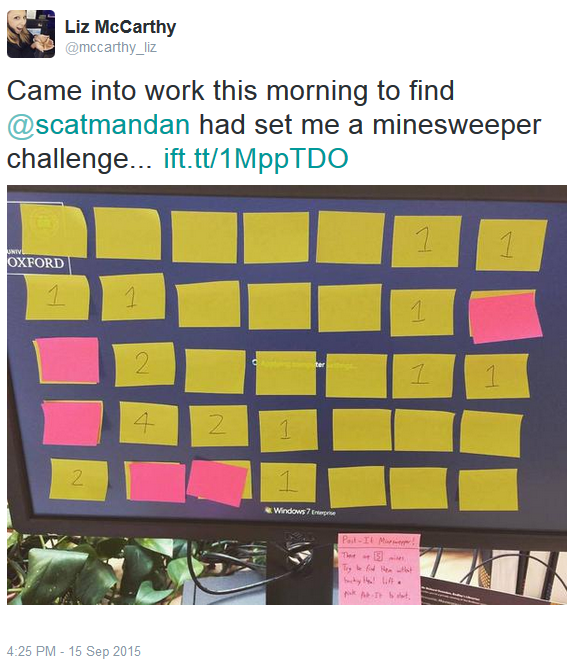
My geek-crush Ben Foxall posted on Twitter on Monday morning to share
that he’d had a moment of fun nostalgia when he’d come into the office to discover that somebody in his team had covered his monitor with two layers of Post-It notes. The bottom layer
contained numbers – and bombs! – to represent the result of a Minesweeper board, and the upper layer ‘covered’ them so that individual Post-Its could be removed to reveal what lay
beneath. Awesome.
Unlike most computerised implementations of Minesweeper, the first move isn’t guaranteed to be safe. Tread carefully…
Not to be outdone, I hunted around my office and found some mini-Post-Its. Being smaller meant that I could fit more of them onto a monitor and thus make a more-sophisticated (and
more-challenging!) play space. But how to generate the board? Sure: I could do it by hand, but that doesn’t seem very elegant at all – plus, humans make really bad random number generators! I didn’t need quantum-tunnelling-seeded Minesweeper (yes, that’s a thing) levels of entropy, sure, but it’d still be nice to outsource the heavy lifting
to a computer, right?
Yes, I’m quite aware of the irony of using a computer to generate a paper-based version of a computer game, why do you ask?
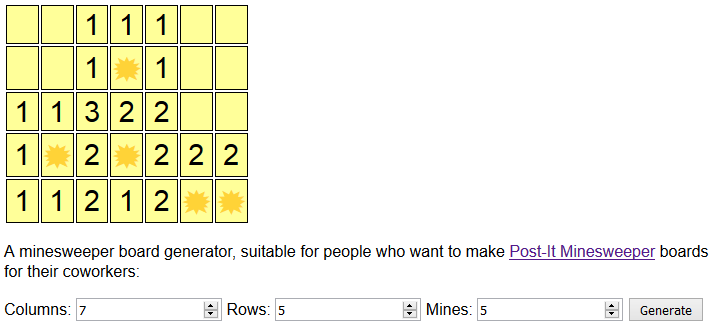
So naturally, I wrote a program to do it for me. Want to see? It’s at danq.me/minesweeper. Just line up some Post-Its on a co-worker’s monitor to work out
how many you can fit across it in each dimension (I found that I could get 6 × 4 standard-sized Post-Its but 7× 5 or even 8× 5 mini-sized Post-Its very comfortablyonto one of the typical widescreen monitors in my office), decide how many mines you want, and click
Generate. Don’t like the board you get? Click it again!
I set up the first game on my colleague Liz’s computer, before she came in this morning.
And because I was looking for a fresh excuse to play with Periscope, I broadcast the first game I set up live to the Internet. In the end, 66
people ended up watching some or all of a paper-based game of Minesweeper played by my colleague Liz, including moments of cheering her on
and, in one weird moment, despair at the revelation that she was married. The internet’s strange, yo.
Anyway: in case you missed the Periscope broadcast, I’ve put it on YouTube. Sorry about the portrait-orientation filming: I
think it’s awful, too, but it’s a Periscope thing and I haven’t installed the new update that
fixes it yet.
Now go set up a game of Post-It Minesweeper for a friend or co-worker.
What’s the hardest word to guess, when playing hangman? I’ll come back to that.
Whatever could the missing letter be?
Last year, Nick Berry wrote a fantastic blog post about the optimal strategy for Hangman. He showed that the best guesses
to make to get your first “hit” in a game of hangman are not the most-commonly occurring letters in written English, because these aren’t the most commonly-occurring
letters in individual words. He also showed that the first guesses should be adjusted based on the length of the word (the most common letter in 5-letter words is ‘S’, but the most
common letter in 6-letter words is ‘E’). In short: hangman’s a more-complex game than you probably thought it was! I’d like to take his work a step further, and work out which word is
the hardest word: that is – assuming you’re playing an optimal strategy, what word takes the most-guesses?
The rules of hangman used to be a lot more brutal. Nowadays, very few people die as a result of the game.
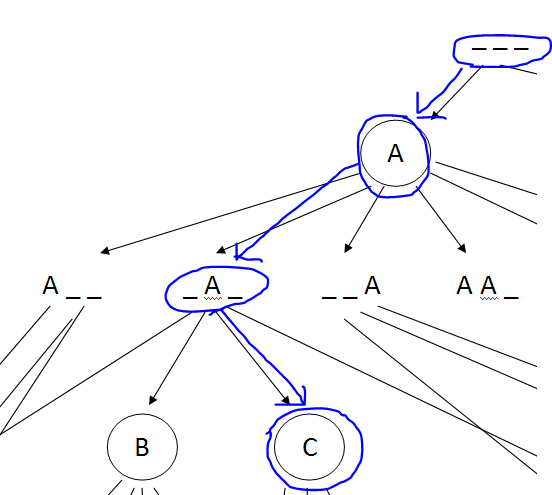
First, though, we need to understand how hangman is perfectly played. Based on the assumption that the “executioner” player is choosing words randomly, and that no clue is given as to
the nature of the word, we can determine the best possible move for all possible states of the game by using a data structure known as a tree. Suppose our opponent has chosen a
three-letter word, and has drawn three dashes to indicate this. We know from Nick’s article that the best letter to guess is A. And then, if our guess is wrong, the next
best letter to guess is E. But what if our first guess is right? Well, then we’ve got an “A” in one or more positions on the board, and we need to work out the next best
move: it’s unlikely to be “E” – very few three-letter words have both an “A” and an “E” – and of course what letter we should guess next depends entirely on what positions
the letters are in.
There are billions of possible states of game play, but you can narrow them down quickly with strategic guessing.
What we’re actually doing here is a filtering exercise: of all of the possible letters we could choose, we’re considering what possible results that could have. Then for
each of those results, we’re considering what guesses we could make next, and so on. At each stage, we compare all of the possible moves to a dictionary of all possible
words, and filter out all of the words it can’t be: after our first guess in the diagram above, if we guess “A” and the board now shows “_ A _”, then we know that of the
600+ three-letter words in the English language, we’re dealing with one of only about 134. We further refine our guess by playing the odds: of those words, more of them have a “C” in
than any other letter, so that’s our second guess. If it has a C in, that limits the options further, and we can plan the next guess accordingly. If it doesn’t have a C
in, that still provides us with valuable information: we’re now looking for a three-letter word with an A in the second position and no letter C: that cuts it
down to 124 words (and our next guess should be ‘T’). This tree-based mechanism for working out the best moves is comparable to that used by other game-playing computers. Hangman is
simple enough that it can be “solved” by contemporary computers (like draughts –
solved in 2007 – but unlike chess: while modern chess-playing
computers can beat humans, it’s still theoretically possible to build future computers that will beat today’s computers).
Zen Hangman asks the really important questions. If a man has one guess left and refuses to pick a letter, does he live forever, or not at all?
Now that we can simulate the way that a perfect player would play against a truly-random executioner, we can use this to simulate games of hangman for every possible word
(I’m using version 0.7 of this British-English dictionary).
In other words, we set up two computer players: the first chooses a word from the dictionary, the second plays “perfectly” to try to guess the word, and we record how many guesses it
took. So that’s what I did. Here’s the Ruby code I used. It’s heavily-commented and
probably pretty understandable/good learning material, if you’re into that kind of thing. Or if you fancy optimising it, there’s plenty of scope for that too (I knocked it out on a
lunch break; don’t expect too much!). Or you could use it as the basis to make a playable hangman game. Go wild.
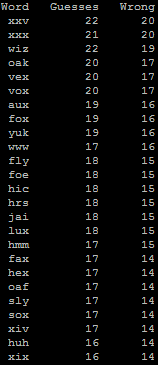
The hardest three-letter hangman words. “Sly” is particularly… well, sly.
Running the program, we can see that the hardest three-letter word is “xxv”, which would take 22 guesses (20 of them wrong!) to get. But aside from the roman numeral for 25, I don’t
think that “xxv” is actually a word. Perhaps my dictionary’s not very good. “Oak”, though, is definitely a word, and at 20 guesses (17 wrong), it’s easily enough to hang your opponent
no matter how many strokes it takes to complete the gallows.
Interestingly, “oaks” is an easier word than “oak” (although it’s still very difficult): the addition of an extra letter to a word does not make it harder, especially when that letter
is common.
There are more tougher words in the four-letter set, like the devious “quiz”, “jazz”, “zinc”, and “faux”. Pick one of those and your opponent – unless they’ve seen this blog post! – is
incredibly unlikely to guess it before they’re swinging from a rope.
“Hazing foxes, fucking cockily” is not only the title of a highly-inappropriate animated film, but also a series of very challenging Hangman words.
As we get into the 5, 6, and 7-letter words you’ll begin to notice a pattern: that the hardest words with any given number of letters get easier the longer
they are. That’s kind of what you’d expect, I suppose: if there were a hypothetical word that contained every letter in the alphabet, then nobody would ever fail to (eventually) get it.
Some of the longer words are wonderful, like: dysprosium, semivowel, harrumph, and googolplex.
When we make a graph of each word length, showing which proportion of the words require a given number of “wrong” guesses (by an optimised player), we discover a “sweet spot” window in
which we’ll find all of the words that an optimised player will always fail to guess (assuming that we permit up to 10 incorrect guesses before they’re disqualified). The
window seems small for the number of times I remember seeing people actually lose at hangman, which implies to me that human players consistently play sub-optimally, and do not
adequately counteract that failing by applying an equal level of “smart”, intuitive play (knowing one’s opponent and their vocabulary, looking for hints in the way the game is
presented, etc.).
The “sweet spot” in the bottom right is the set of words which you would expect a perfect player to fail to guess, assuming that they’re given a limit of 10 “wrong” guesses.
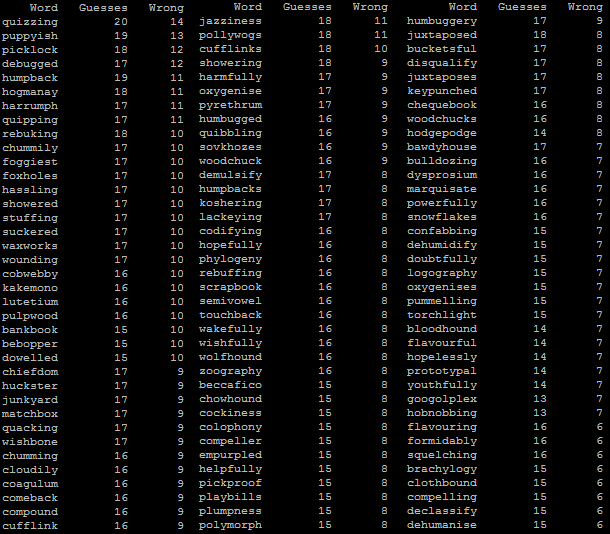
In case you’re interested, then, here are the theoretically-hardest words to throw at your hangman opponent. While many of the words there feel like they would quite-rightly be
difficult, others feel like they’d be easier than their ranking would imply: this is probably because they contain unusual numbers of vowels or vowels in unusual-but-telling positions,
which humans (with their habit, inefficient under normal circumstances, of guessing an extended series of vowels to begin with) might be faster to guess than a
computer.
The explosion of smartphone ownership over the last decade has put powerful multi-function computers into the pockets of almost half of us. But despite the fact that the average smartphone contains at least as much
personally-identifiable information as its owner keeps on their home computer (or in dead-tree
form) at their house – and is significantly more-prone to opportunistic theft – many users put significantly less effort into protecting their mobile’s data than they do
the data they keep at home.
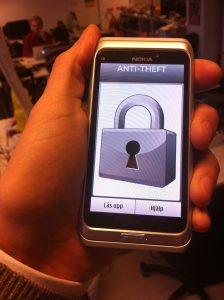
Too late, little Nokia E7: I’ve got physical access to you now.
I have friends who religiously protect their laptops and pendrives with TrueCrypt, axCrypt, or similar, but still carry around an unencrypted mobile phone. What we’re talking about here is a device that contains all of the contact details for you
and everybody you know, as well as potentially copies of all of your emails and text messages, call histories, magic cookies for social networks and other services, saved passwords, your browsing history (some people would say that’s the
most-incriminating thing on their phone!), authentication apps, photos, videos… more than enough information for an attacker to pursue a highly-targeted identity theft or
phishing attack.
Android pattern lock: no encryption, significantly less-random than an equivalent-length PIN, and easily broken by a determined attacker.
“Pattern lock” is popular because it’s fast and convenient. It might be good enough to stop your kids from using your phone without your permission (unless they’re smart enough to do
some reverse smudge engineering: looking for the smear-marks made by
your fingers as you unlock the device; and let’s face it, they probably are), but it doesn’t stand up to much more than that. Furthermore, gesture unlock solutions dramatically reduce
the number of permutations, because you can’t repeat a digit: so much so, that you can easily perform a rainbow table attack on the SHA1 hash to reverse-engineer somebody’s gesture.
Even if Android applied a per-device psuedorandom salt to the gesture pattern (they don’t, so you can download a prefab table), it doesn’t take long to generate an SHA1 lookup of
just 895,824 codes (maybe Android should have listened to Coda
Hale’s advice and used BCrypt, or else something better still).
An encrypted iPhone can be configured to resist brute-force attacks by wiping the phone after repeated failures, which replaces one security fault (brute-force weakness) with another
(a denial of service attack that’s so easy that your friends can do it by accident).
These attacks, though (and the iPhone isn’t bulletproof, either), are all rather academic, because
they are trumped by the universal rule
that once an attacker has physical access to your device, it is compromised. This is fundamentally the way in which mobile security should be considered to be equivalent
to computer security. All of the characteristics distinct to mobile devices (portability, ubiquity, processing power, etc.) are weaknesses, and that’s why
smartphones deserve at least as much protection as desktop computers protecting the same data. Mobile-specific features like “remote wipe” are worth having, but can’t
be relied upon alone – a wily attacker could easily keep your phone in a lead box or otherwise disable its connectivity features until it’s cracked.
The bottom line: if the attacker gets hold of your phone, you’re only as safe as your encryption.
The only answer is to encrypt your device (with a good password). Having to tap in a PIN or password may be less-convenient than just “swipe to unlock”, but it gives
you a system that will resist even the most-thorough efforts to break it, given physical access (last year’s
iPhone 4 vulnerability notwithstanding).
It’s still not perfect – especially here in the UK, where the RIPA can be used (and has been used) to force key surrender. What we really need is
meaningful, usable “whole system” mobile encryption with plausible deniability. But so long as you’re only afraid of identity thieves and phishing scammers, and not being
forced to give up your password by law or under duress, then it’s “good enough”.
Of course, it’s only any use if it’s enabled before your phone gets stolen! Like backups, security is one of those things that everybody should make a habit of thinking
about. Go encrypt your smartphone; it’s remarkably easy –
As web developers, we’re used to working around the bugs in Microsoft Internet Explorer. The older versions are worst, and I’m certainly glad to not have to write code that works in Internet
Explorer 6 (or, increasingly, Internet Explorer 7) any more: even Microsoft are glad to see Internet
Explorer 6 dying out, but even IE8 is pretty ropey too. And despite what Microsoft claim, I’m afraid IE9 isn’t really a “modern” browser either (although it is a huge step forwards over its predecessors).
But imagine my surprise when I this week found what I suspect might be a previously undiscovered bug in Internet Explorer 8 and below. Surely they’ve all been found (and some of them
even fixed), but now? But no. It takes a very specific set of circumstances for the bug to manifest itself, but it’s not completely unbelievable – I ran into it by accident while
refactoring parts of Three Rings.
A completely useless Internet Explorer error message. Thanks, IE.
Here’s the crux of it: if you’re –
Using Internet Explorer 8 or lower, and
You’re on a HTTPS (secure) website, and
You’re downloding one of a specific set of file types: Bitmap files, for example, are a problem, but JPEG files aren’t (Content-Type: image/bmp), and
The web server indicates that the file you’re downloading should be treated as something to be “saved”, rather than something to be viewed in your browser
(Content-Disposition: attachment), and
The web server passes a particular header to ask that Internet Explorer does not cache a copy of the file (Cache-Control: no-cache),
Then you’ll see a dialog box like the one shown above. Switching any of the prerequisites in that list out makes the problem go away: even switching the header from a strict “no-cache”
to a more-permissive “private” makes all the difference.
I’ve set up a test environment where you can see this for yourself: HTTP version; HTTPS version. The source code of my experiment (PHP) is also available. Of course, if you try it in a functional, normal web browser, it’ll all work fine. But if
you’ve got access to a copy of Internet Explorer 8 on some old Windows XP box somewhere (IE8 is the last version of the browser made available for XP), then try it in that and see for
yourself what a strange error you get.
Last week I was talking to Alexander Dutton about an idea that we had to implement cookie-like behaviour using browser caching. As I first mentioned last year, new laws are coming into force across Europe that will require
websites to ask for your consent before they store cookies on your computer.
Regardless of their necessity, these laws are badly-defined and ill thought-out, and there’s been a significant lack of information to support web managers in understanding and
implementing the required changes.
British Telecom’s implementation of the new cookie laws. Curiously, if you visit their site using the Opera web browser, it assumes that you’ve given consent, even if you click the
button to not do so.
To illustrate one of the ambiguities in the law, I’ve implemented a tool which tracks site visitors almost as effectively as cookies (or similar technologies such as Flash Objects or
Local Storage), but which must necessarily fall into one of the larger grey areas. My tool abuses the way that “permanent” (301) HTTP redirects are cached by web browsers.
[callout][button link=”http://c301.scatmania.org/” align=”right” size=”medium” color=”green”]See Demo Site[/button]You can try out my implementation for yourself. Click on the button to
see the sample site, then close down all of your browser windows (or even restart your computer) and come back and try again: the site will recognise you and show you the same random
number as it did the first time around, as well as identifying when your first visit was.[/callout]
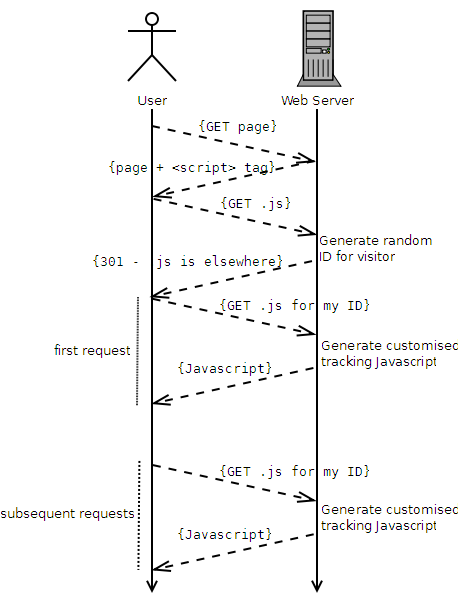
Here’s how it works, in brief:
A user visits the website.
The website contains a <script> tag, pointing at a URL where the user’s browser will find some Javascript.
The user’s browser requests the Javascript file.
The server generates a random unique identifier for this user.
The server uses a HTTP 301 response to tell the browser “this Javascript can be found at a different web address,” and provides an address that contains the new unique identifier.
The user’s browser requests the new document (e.g. /javascripts/tracking/123456789.js, if the user’s unique ID was 123456789).
The resulting Javascript is generated dynamically to automatically contain the ID in a variable, which can then be used for tracking purposes.
Subsequent requests to the server, even after closing the browser, skip steps 3 through 5, because the user’s browser will cache the 301 and re-use the unique web
address associated with that individual user.
How my “301-powered ‘cookies'” work.
Compared to conventional cookie-based tracking (e.g. Google Analytics), this approach:
Is more-fragile (clearing the cache is a more-common user operation than clearing cookies, and a “force refresh” may, in some browsers, result in a new tracking ID
being issued).
Is less-blockable using contemporary privacy tools, including the W3C’s proposed one: it won’t be spotted by any
cookie-cleaners or privacy filters that I’m aware of: it won’t penetrate incognito mode or other browser “privacy modes”, though.
Moreover, this technique falls into a slight legal grey area. It would certainly be against the spirit of the law to use this technique for tracking purposes (although it
would be trivial to implement even an advanced solution which “proxied” requests, using a database to associate conventional cookies with unique IDs, through to Google Analytics or a
similar solution). However, it’s hard to legislate against the use of HTTP 301s, which are an even more-fundamental and required part of the web than cookies are. Also, and for the same
reasons, it’s significantly harder to detect and block this technique than it is conventional tracking cookies. However, the technique is somewhat brittle and it would be necessary to
put up with a reduced “cookie lifespan” if you used it for real.
[callout][button link=”http://c301.scatmania.org/” align=”right” size=”medium” color=”green”]See Demo Site[/button] [button link=”https://gist.github.com/avapoet/5318224″ align=”right”
size=”medium” color=”orange”]Download Code[/button] Please try out the demo, or download the source code (Ruby/Sinatra) and see for yourself how this technique works.[/callout]
Note that I am not a lawyer, so I can’t make a statement about the legality (or not) of this approach to tracking. I would suspect that if you were somehow caught doing
it without the consent of your users, you’d be just as guilty as if you used a conventional approach. However, it’s certainly a technically-interesting approach that might have
applications in areas of legitimate tracking, too.
Update: The demo site is down, but I’ve update the download code link so that it still works.
As I indicated in my last blog post, my new blog theme has a “pop up” Dan in the
upper-left corner. Assuming that you’re not using Internet Explorer, then when you move your mouse cursor over it, my head will “duck” back behind the bar below it.
My head "pops up" in the top-left hand corner of the site, and hides when you hover your mouse cursor over it.
This is all done without any Javascript whatsoever: it’s pure CSS. Here’s how it’s done:
<divclass="sixteen columns"> <divid="dans-creepy-head"></div> <h1id="site-title"class="graphic">
<ahref="/"title="Scatmania">Scatmania</a>
</h1> <spanclass="site-desc graphic">
The adventures and thoughts of "Scatman" Dan Q
</span> </div>
The HTML for the header itself is pretty simple: there’s a container (the big blue bar) which contains, among other things, a <div> with the id
"dans-creepy-head". That’s what we’ll be working with. Here’s the main CSS:
The CSS sets a size, position, and background image to the <div>, in what is probably a familiar way. A :hover selector changes the style to increase the
distance from the top of the container (from -24px to 100px) and to decrease the height, cropping the image (from 133px to 60px – this was necessary
in this case to prevent the bottom of the image from escaping out from underneath the masking bar that it’s supposed to be “hiding behind”). With just that code, you’d have a perfectly
workable “duck”, but with a jerky, one-step animation.
The transition directive (and browser-specific prefix versions -o-transition, -webkit-transition, and -moz-transition, for compatability) are what
makes the magic happen. This element specifies that any ("all") style is changed on this element (whether via CSS directives, as in this case, or by a change of class or
properties by a Javascript function), that a transition effect will be applied to those changes. My use of "all" is a lazy catch-all – I could have specified the
individual properties ( top and height) that I was interested in changing, and even put different periods on each, but I’ll leave it to you to learn about CSS3 transition options for yourself. The 800ms is the
duration of the transition: in my case, 0.8 seconds.
I apply some CSS to prevent the :hover effect from taking place in Internet Explorer, which doesn’t support transitions. The "ie" class is applied to the
<html> tag using Paul Irish’s technique, so it’s easy to detect and handle IE users without
loading separate stylesheet files for them. And finally, in order to fit with my newly-responsive design, I make the pop-up head disappear when the window is under 780px wide (at which
point there’d be a risk of it colliding with the title).
That’s all there is to it! A few lines of CSS, and you’ve got an animation that degrades gracefully. You could equally-well apply transformations to links (how about making them fade in
or out, or change the position of their background image?) or, with a little Javascript, to your tabstrips and drop-down menus.
Apparently the plastic coating around this cable helps to prevent 'virus noises', whatever those are. Red scribbles added by me.
Somehow, this triggered a transformation in me. You know how when Eric eats
a banana, an amazing transformation occurs? A similar thing happened to me: this horrendously-worded advertisement turned me into an old person. I wanted to write a letter
to them.
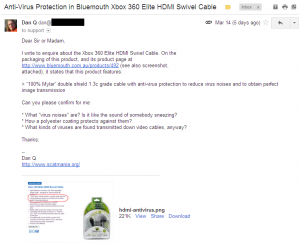
My letter... er... email to Bluemouth Interactive.
There were so many unanswered questions in my mind: what is a “virus noise” (is it a bit like the sound of somebody sneezing?)? How a polyester coating protects against them? And what
kind of viruses are transmitted down video cables, anyway?
Bluemouth's response to me. Like the other pictures, you can click it to see it in full.
Their explanation? The ‘Virus’ was transcribed from French terminology for interference. It’s not a computer virus or anything like that.
The world is full of examples of cables being over-sold, especially HDMI cables and things like “gold-plated optical cables” (do photons care about the conductivity of gold, now?).
Does anybody have enough of a familiarity with the French language to let me know if their explanation is believable?
On this day in 2011 I launched
FreeDeedPoll.org.uk, a site that tries to make it as easy as possible for British citizens to change their names (and have those new names
accepted as being legally-recognised).
Generate free UK deeds of name change at freedeedpoll.org.uk.
The thing that people often don’t realise is that, as a British citizen, you have the right to be known by pretty-much any name you like. You don’t need a solicitor to change your name. You
don’t even need any money. You can just start using it. A deed poll, which you can make all by yourself for free, is just a piece of paper on which you write
a promise that you consider your “new” name to be your primary moniker, and not your “old” one.
Over the last year, almost 3,000 deed polls have been generated using the site, including ones for my partner Ruth (who opted to keep her maiden name as a middle name after she got married) and my friend Jen (who now has among the coolest – and most hippyish – collection of names I’ve ever seen). As to how many of the other thousands of deed polls have actually
been used, I simply don’t know: as a commitment to privacy, no logs are kept of the names people enter onto the form, so for all I know there are 2,000 all the same and 998 “blank”
submissions.
Looking Forward
I’ve become a minor Internet guru on the topic of name changes, it turns out. The other week, a transgendered stranger contacted me via the “chat to Dan” link, to ask about the legal
aspects of their (slightly more-complex than most) case for changing their name. And because I’m a fan of helping people, I did a little research with them in order to find the answers.
I felt the need to keep stressing that IANAL, but I’m
pretty sure I managed to help, anyway.
And over the New Year, when there were a few days of downtime for the site (I was part of an exodus of domains from my SOPA-supporing previous registrar, and they made the
process difficult), I received messages from people asking when it would be back up again, so it’s obviously getting some use.
Most recently, a few days ago, a stranger emailed me asking for advice on the legal issues in changing the names of his children. After doing the necessary research, I’m now thinking of
expanding the site to make this easier, too.
A (sample) deed poll document generated by freedeedpoll.org.uk.
A strange feeling for me has been that this project is, and has been for the last year, “finished”. I’m not very good at finishing technical projects: one of the biggest and most
important things that I’ve worked on – Three Rings – is
now
in its tenth year and shows no sign of being “finished”. So it feels odd to have developed a website that’s complete, done and dusted, and probably won’t require more than a modicum
of maintenance over the coming decades to keep it running.
It’s good, though, that I’ve been able to help people with something about which far too many are underinformed. It gives me a warm fuzzy feeling, and I like it.
To mark the ocassion, I’ve updated the open-source version of the
tool so that it works “out of the box”: it now includes all of the (free) fonts you need to get started, and can be used without setting up reCAPTCHA if you like. For more information about the history of the project, see my project page about it.
This blog post is part of the On This Day series, in which Dan periodically looks back on
years gone by.
The other week I built Tiffany2, New Earth‘s new media centre computer. She’s well-established and being used to watch movies, surf the web, and whatnot, now,
so I thought I’d better fulfil my promise of telling you about my other new smaller-than-average computer, Dana, whose existence was made possible by gifts from my family
over Christmas and my birthday.
Dana‘s size and power-consumption is so small that it makes Tiffany2 look like a bloated monster. That’s because Dana is a DreamPlug, an open-architecture plug computer following in the footsteps of the coveted SheevaPlug and
GuruPlug.
A dreamplug (seen here with a two-pin power connector, which helps to give you a sense of its size).
The entire computer including its detachable power supply is only a little larger than the mobile telephones of the mid-nineties, and the entire device can be plugged straight into the
wall. With no hard disk (it uses SD cards) and no fans, the DreamPlug has no moving parts to wear out or make noise, and so it’s completely silent. It’s also incredibly low-power – mine
idles at about 4 watts – that’s about the same as a radio alarm clock, and about a hundredth of what my desktop PCs Toni and Nena run at under a typical load.
I’ve fitted up mine with a Mimo Mini-Monster 10″: a dinky little self-powered USB-driven touchscreen monitor about the
size of an iPad. Right now the whole assembly – about the size of a large picture frame – sits neatly in the corner of my desk and (thanks to the magic of Synergy) forms part of my extended multi-monitor desktop, as well as acting as a computer in her own right.
Dana's Mimo Mini-Monster touchscreen: Dana herself is completely concealed behind the screen.
So on the surface, she’s a little bit like a wired tablet computer, which would seem a little silly (and indeed: at a glance you’d mistake her for a digital photo frame)! But because
she’s a “real” computer underneath, with a 1.2GHz processor, 512MB RAM, USB, WiFi, and two Ethernet ports, there’s all kinds of fun things that can be done with her.
For a start, she provides an ultra low-power extension to my existing office development environment. I’ve experimented with “pushing” a few tasks over to her, like watching log file
output, downloading torrents, running a web server, reading RSS feeds, and so on, but my favourite of her tasks is acting as a gateway between the rest of the world and my office.
A network diagram showing the layout of the computer networks on New Earth. It's more-complex than your average household.
While they’ve come a long way, modern ADSL routers are still woefully inadequate at providing genuine customisability and control over my home network. But a computer like this – small,
silent, and cheap – makes it possible to use your favourite open-source tools (iptables, squid, sshd, etc.) as a firewall to segregate off a part of the network. And that’s exactly what
I’ve done. My office – the pile of computers in the upper-right of the diagram, above – is regulated by Dana, whose low footprint means that I don’t feel bad about leaving her
turned always-on.
That means that, from anywhere in the world (and even from my phone), I can now:
Connect into Dana using SSH.
Send magic packets
to Toni, Nena, or Tiffany2 (all of which are on wired connections), causing them to turn themselves on.
Remotely control those computers to, for example, get access to my files from anywhere, set them off downloading something I’ll need later, or whatever else.
Turn them off when I’m done.
That’s kinda sexy. There’s nothing new about it – the technologies and standards involved are as old as the hills – but it’s nice to be able to do it using something that’s barely
bigger than a postcard.
I have all kinds of ideas for future projects with Dana. It’s a bit like having a souped-up (and only a little bigger) Arduino to play with, and it’s brimming with potential. How about a webcam for my
bird feeder? Or home-automation tools (y’know: so I can turn on my bedroom light without having to get out of bed)? Or a media and file server (if I attached a nice, large, external
hard disk)? And then there’s the more far-fetched ideas: it’s easily low-power enough to run from a car battery – how about in-car entertainment? Or home-grown GPS guidance? What about
a “delivered ready-to-use” intranet application, as I was discussing the other day with a colleague, that can be simply posted to a client, plugged in, and used? There’s all kinds of
fun potential ideas for a box like this, and I’m just beginning to dig into them.
This weekend, I integrated two new computers into the home network on New Earth. The first of these is
Tiffany2.
Tiffany2 is a small "media centre" style computer with an all-in-one remote keyboard/mouse.
Tiffany2 replaces Tiffany, the media centre computer I built a little under four years ago. The original Tiffany was built on a shoestring budget of
under £300, and provided the technical magic behind the last hundred or so Troma Nights, as well as countless other film and television nights, a means to watch (and record and pause)
live TV, surf the web, and play a game once in a while.
The problem with Tiffany is that she was built dirt-cheap at a time when building a proper media centre PC was still quite expensive. So she wasn’t very good. Honestly, I’m
amazed that she lasted as long as she did. And she’s still running: but she “feels” slow (and takes far too long to warm up) and she makes a noise like a jet engine… which isn’t what
you want when you’re paying attention to the important dialogue of a quiet scene.
Tiffany and Tiffany2. Were this a histogram of their relative noise levels, the one on the left would be much, much larger.
Tiffany2 is virtually silent and significantly more-powerful than her predecessor. She’s also a lot smaller – not much bigger than a DVD player – and generally more
feature-rich.
This was the first time I’d built an ITX form-factor computer (Tiffany2 is Mini-ITX): I wanted to make her small, and it seemed like the best standard for the job. Assembling some of her components felt a little like
playing with a doll’s house – she has a 2.5″ hard disk and a “slimline” optical drive: components that in the old days we used to call “laptop” parts, which see new life in small
desktop computers.
Examples of six different hard drive form factors. Tiffany2 uses the third-smallest size shown in this picture. The computer you're using, unless it's a laptop, probably uses the
third-largest (picture courtesy Paul R. Potts, CC-At-SA).
In order to screw in some of the smaller components, I had to dig out my set of watchmaker’s screwdrivers. Everything packs very neatly into a very small space, and – building her – I
found myself remembering my summer job long ago at DesignPlan Lighting, where I’d have to tuck dozens of little
components, carefully wired-together, into the shell of what would eventually become a striplight in a tube train or a prison, or something.
She’s already deployed in our living room, and we’ve christened her with the latest Zero Punctuation, a few DVDs, some episodes of Xena: Warrior Princess, and an episode of Total Wipeout featuring JTA‘s old history teacher as a contestant. Looks
like she’s made herself at home.
(for those who are sad enough to care, Tiffany2 is running an Intel Core i3-2100 processor, underclocked to 3GHz, on an mITX Gigabyte GA-H61N-USB3 motherboard with 4GB RAM, a 750GB hard disk, and DVD-rewriter, all wrapped up in an Antec ISK 300-150 case with a 150W power supply: easily enough for a media centre box plus some
heavy lifting if I ever feel the need to give her any)
Long ago, I used desktop RSS readers. I was only subscribed to my friends’ blogs back then anyway, so it didn’t matter that I could only read them from my home computer. But then RSS
feeds started appearing on news sites, and tech blogs started appearing about things related to my work. And smartphones took over the world, and I wanted to be able to synchronise my
reading list everywhere. There were a few different services that competed for my attention, but Google Reader was the best. It was simple, and fast, and easy, and it Just Worked in
that way that Google products often do.
I put up with the occasional changes to the user interface. Hey, it’s a beta, and it’s still the best thing out there. Hey, it’s free, what can you say? I put up with the fact that from
time to time, they changed the site in ways that were sometimes quite hostile to Opera, my web
browser of choice. I put up with the fact that it had difficulty with unsigned HTTPS certificates (it’s fine now) and that it didn’t provide a mechanism to authenticate against services
like LiveJournal (it still doesn’t). I even worked around the latter, releasing my own tool and updatingit a few times until LiveJournal blocked it (twice) and I had to instead recommend that people switched to rival service FreeMyFeed.
The new Google Reader (with my annotations - click to embiggen). It sucks quite a lot.
I know that they’re ever-so-proud of the Google+ user interface, but rebranding all of the other services to look like
it just isn’t working. It’s great for Google+, not-bad for Search, bad for GMail (but at least you can turn it off!), and fucking awful for Reader. I like
distinct borders between my items. I don’t like big white spaces and buttons that eat up half the screen.
The sharing interface is completely broken. After a little while, I worked out that I still can share things with other people, but I can’t any longer see what other
people are sharing without clicking over to Google+. This sucks a lot. No longer can I keep track of which shared items I have and haven’t read, and no longer can I read the interesting
RSS feeds my friends have shared in the same place as I read (and share) my own.
So that’s the last straw. Today, I switched everything over to Tiny Tiny RSS.
Tiny Tiny RSS - it's simple, clean, and (in an understated way) beautiful.
Originally I felt that I was being pushed “away” from Google Reader, but the more I’ve played with it, the more I’ve realised that I’m being drawn “towards” Tiny Tiny, and wishing that
I’d made the switch further. The things that have really appealed are:
It’s self-hosted. Tiny Tiny RSS is a free, open-source solution that you host for yourself (or I suppose you can use a shared host; there are a few around). I know
that this is a downside to most people, but to me, it’s a serious selling point: now, I’m in control of what updates are applied, when, and if I don’t like the
functionality of a part of the system, I can change it – I’m in control.
It’s simple and clean. It’s got a great user interface, in an understated and simplistic way. It’s somewhat reminiscent of desktop email clients,
replacing the “stream of feeds” idea with a two- or three-pane view (your choice). That sounds like it’d be a downside, until you realise…
…with great keyboard controls. Tiny Tiny RSS is great for keyboard lovers like me. The default key-commands (which are of course customisable) are based on
Emacs, so if that’s your background then it’s easy to be right at home in minutes and browsing feeds faster than ever.
Plus: it’s got a stack of nice features. I’m loving the “fresh” filter, that helps me differentiate between the stuff I’ve “saved for later” reading and the
stuff that’s actually new and interesting. I’m also impressed by the integrated authentication, which removes my dependency on FreeMyFeed-like services and (because it’s self-hosted)
lets me keep my credentials securely under my own control. It supports authentication using SSL certificates, a beautiful and underused technology. It allows you to customise the
update frequency of your feeds, so I can stalk by friends’ blogs at lightning-quick rates and stall my weekly update subscriptions so they don’t get checked so frequently. And unlike
Google Reader, it actually tells me when feeds break, so I don’t just “get no updates” for a while before I think to check the site (and it’ll even let me change the
URLs when this happens, rather than unsubscribing and resubscribing).
Put simply: all of my major gripes with Google Reader over the last few years have been answered all at once in this wonderful little program. If people are interested in how I set up
Tiny Tiny RSS and and made the switchover as simple and painless as possible, I’ll write a blog post to talk you through it.
I’ve had just one problem: it’s not quite so tolerant of badly-formed XML as Google Reader. There’s one feed in my list which, it turns out, has (very) invalid XML in it’s
feed, that Google Reader managed to ignore and breeze over, but Tiny Tiny RSS chokes on. I’ve contacted the site owner to try to get it fixed, but if they don’t, I might have to hack
some code to try to make a workaround. Not ideal, and not something that everybody would necessarily want to deal with, so be aware!
If, like me, you’ve become dissatisfied by Google Reader this week, you might also like to look at rssLounge, the
other worthy candidate I considered as a replacement. I had a quick play but didn’t find it quite as suitable for my needs, but it might be to your taste: take a look.
The new sidebar, showing what I'm reading in my RSS reader lately.
Oh, and one more thing: if you used to “follow” me on Google Reader (or even if you didn’t) and you want to continue to subscribe to the stuff I “share”, then
you’ll want to subscribe to this new RSS feed of “my shared stuff”, instead: it can also be found syndicated in
the right-hand column of my blog.
Update:this guy’s made a
bookmarklet that makes the new Google Reader theme slightly less hideous. Doesn’t fix the other problems, though, but if you’re not quite pissed-off enough to jump ship, it
might make your experience more-bearable.
Update 2: others in the blogosphere are saying good things about Reader rival NewsBlur, which recently turned one year old. If you’re looking for a hosted
service, rather than something “roll-your-own” like Tiny Tiny RSS, perhaps it’s the tool for you?