Mostly as a note to myself, but here’s what to do if you’re running linuxserver/syncthing via Docker on Unraid and it keeps saying:
ERR Database error when getting previous version (error="getkv: database disk image is malformed (11)" log.pkg=syncthing)
The problem is that Syncthing’s index has been corrupted. I was able to fix it by getting a shell into the relevant Docker container and moving the index: Syncthing detected it as
absent and re-created it, re-indexing everything. Here’s what I did:
I’ve got a (now four-year-old) Unraid NAS called Fox and I’m a huge fan. I particularly love the fact that Unraid can work not only as a NAS, but also as a fully-fledged Docker appliance, enabling me to easily install and maintain all manner of applications.
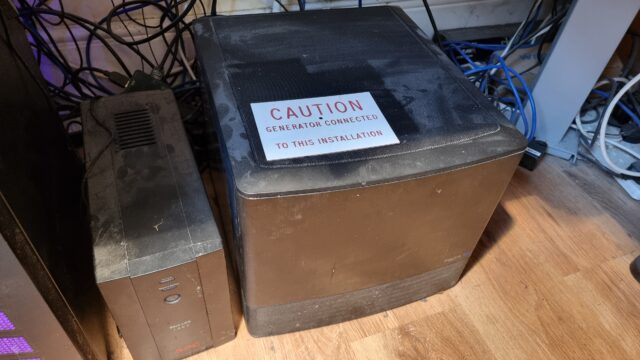
There isn’t really a generator attached to Fox, just a UPS battery backup. The sign was liberated from our shonky home electrical system.
I was chatting this week to a colleague who was considering getting a similar setup, and he seemed to be taking notes of things he might like to install, once he’s got one. So I figured
I’d round up five of my favourite things to install on an Unraid NAS that:
Don’t require any third-party accounts (low dependencies),
Don’t need any kind of high-powered hardware (low specs), and
Provide value with very little set up (low learning curve).
It’d have been cooler if I’d have secretly written this blog post while sitting alongside said colleague (shh!). But sadly it had to wait until I was home.
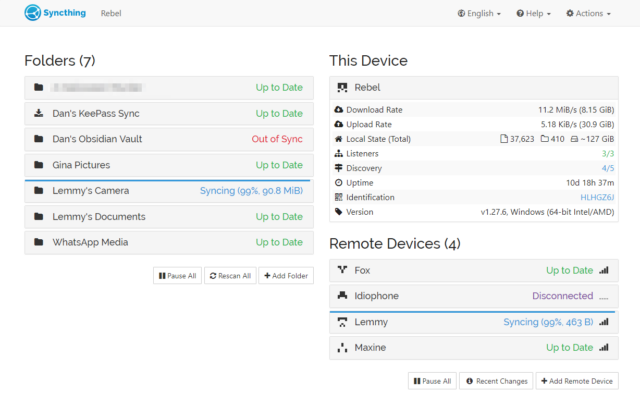
Syncthing’s just an awesome piece of set-and-forget software that facilitates file synchronisation between all of your devices and can also form part of a backup strategy.
Here’s the skinny: you install Syncthing on several devices, then give each the identification key of another to pair them. Now you can add folders on each and “share” them with the
others, and the two are kept in-sync. There’s lots of options for power users, but just as a starting point you can use this to:
Manage the photos on your phone and push copies to your desktop whenever you’re home (like your favourite cloud photo sync service, but selfhosted).
Keep your Obsidian notes in-sync between all your devices (normally costs $4/month).1
Get a copy of the documents from all your devices onto your NAS, for backup purposes (note that sync’ing alone, even with
versioning enabled, is not a good backup: the idea is that you run an actual backup from your NAS!).
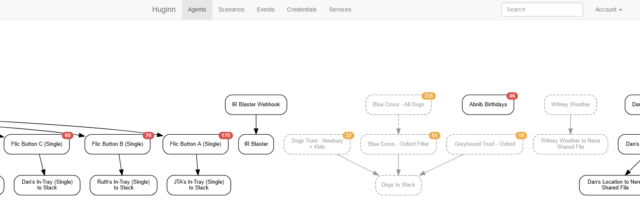
You know IFTTT? Zapier? Services that help you to “automate” things based on inputs and outputs. Huginn’s like that, but selfhosted.
Also: more-powerful.
When we first started looking for a dog to adopt (y’know, before we got this derper), I set up Huginn watchers to monitor the websites of several
rescue centres, filter them by some of our criteria, and push the results to us in real-time on Slack, giving us an edge over other prospective puppy-parents.
The learning curve is steeper than anything else on this list, and I almost didn’t include it for that reason alone. But once you’ve learned your way around its idiosyncrasies and
dipped your toe into the more-advanced Javascript-powered magic it can do, you really begin to unlock its potential.
It couples well with Home Assistant, if that’s your jam. But even without it, you can find yourself automating things you never expected to.
Many of these suggested apps benefit well from you exposing them to the open Web rather than just running them on your LAN,
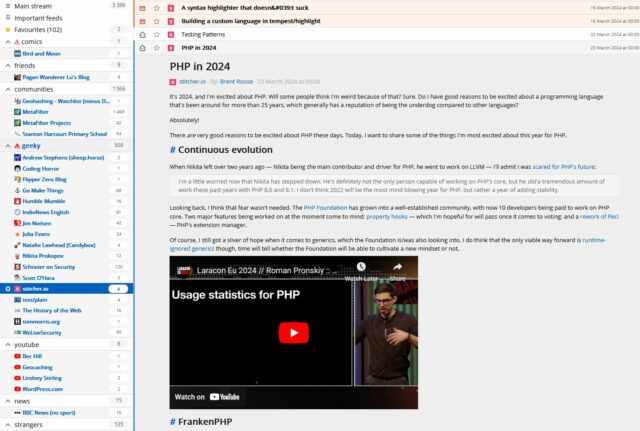
and an RSS reader is probably the best example (you want to read your news feeds when you’re out and about, right?). What you
need for that is a reverse proxy, and there are lots of guides to doing it super-easily, even if you’re not on a static IP
address.2.
Alternatively you can just VPN in to your home: your router might be able to arrange this, or else Unraid can do it for you!
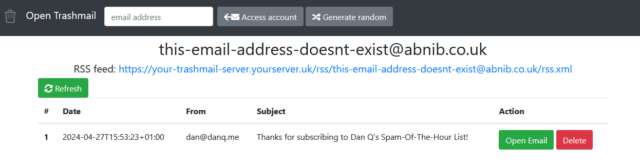
You know how sometimes you need to give somebody your email address but you don’t actually want to. Like: sure, I’d like you to email me a verification code for this download, but I
don’t trust you not to spam me later! What you need is a disposable email address.3
How do you feel about having infinite email addresses that you can make up on-demand (without even having access to a computer), subscribe to by RSS, and never have to see unless you specifically want to.
You just need to install Open Trashmail, point the MX records of a few domain names or subdomains (you’ve got some spare domain names
lying around, right? if not; they’re pretty cheap…) at it, and it will now accept email to any address on those domains. You can make up addresses off the top of your head,
even away from an Internet connection when using a paper-based form, and they work. You can check them later if you want to… or ignore them forever.
Couple it with an RSS reader, or Huginn, or Slack, and you can get a notification or take some action when an email arrives!
Need to give that escape room your email address to get a copy of your “team photo”? Give them a throwaway, pick up the picture when you get home, and then forget you ever gave it
to them.
Company give you a freebie on your birthday if you sign up their mailing list? Sign up 366 times with them and write a Huginn workflow that puts “today’s” promo code into your
Obsidian notetaking app (Sync’d over Syncthing) but filters out everything else.
Suspect some organisation is selling your email address on to third parties? Give them a unique email address that you only give to them and catch them in a honeypot.
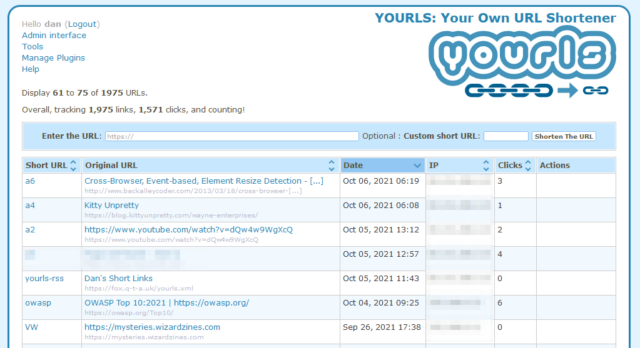
It isn’t pretty, but… it doesn’t need to be! Nobody actually sees the admin interface except you anyway.
Plus, it’s just kinda cool to be able to brand your shortlinks with your own name, right? If you follow only one link from this post, let it be to watch this video
that helps explain why this is important: danq.link/url-shortener-highlights.
I run many, many other Docker containers and virtual machines on my NAS. These five aren’t even the “top five” that I
use… they’re just five that are great starters because they’re easy and pack a lot of joy into their learning curve.
And if your NAS can’t do all the above… consider Unraid for your next NAS!
Footnotes
1 I wrote the beginnings of this post on my phone while in the Channel Tunnel and then
carried on using my desktop computer once I was home. Sync is magic.
2 I can’t share or recommend one reverse proxy guide in particular because I set my own up
because I can configure Nginx in my sleep, but I did a quick search and found several that all look good so I imagine you can do the same. You don’t have to do it on day one, though!
✅ To-Do:Obsidian, physical notepad [not happy with this; want something more productive]
📆 Calendar: Google Calendar (via Thunderbird on Desktop) [not happy with this; want something not-Google – still waiting on Proton Calendar getting good!]
The two most important things you can do to protect your online accounts remain to (a) use a different password, ideally a randomly-generated one, for every service, and (b) enable
two-factor authentication (2FA) where it’s available.
If you’re not already doing that, go do that. A password manager like 1Password, Bitwarden, or LastPass will help (although be aware that the latter’s had some security issues lately, as I’ve mentioned).
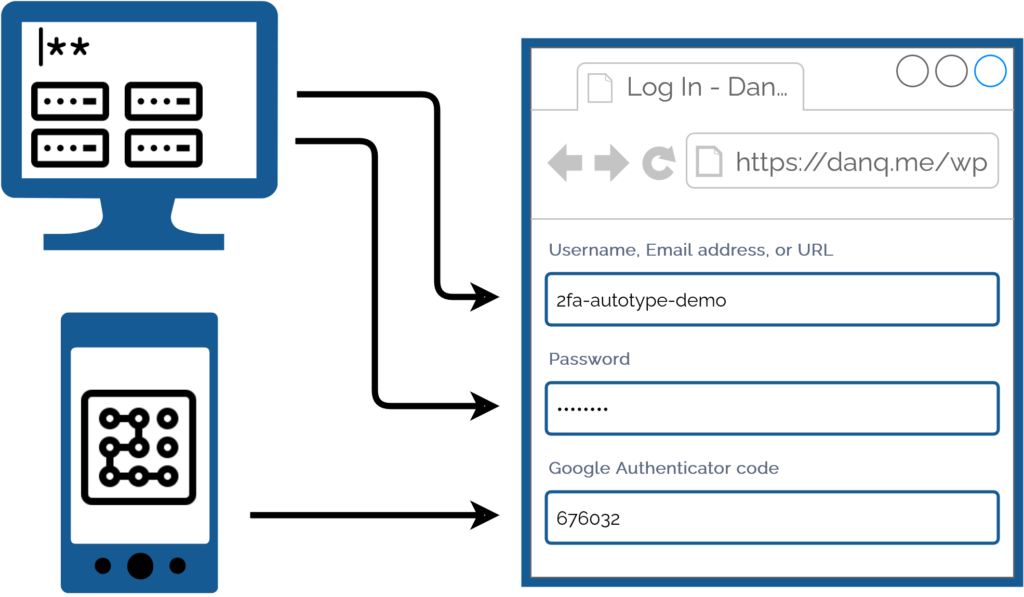
For many people, authentication looks like this: put in a username and password from a password safe (or their brain), and a second factor from their phone.
I promised back in 2018 to talk about what
this kind of authentication usually1
looks like for me, because my approach is a little different:
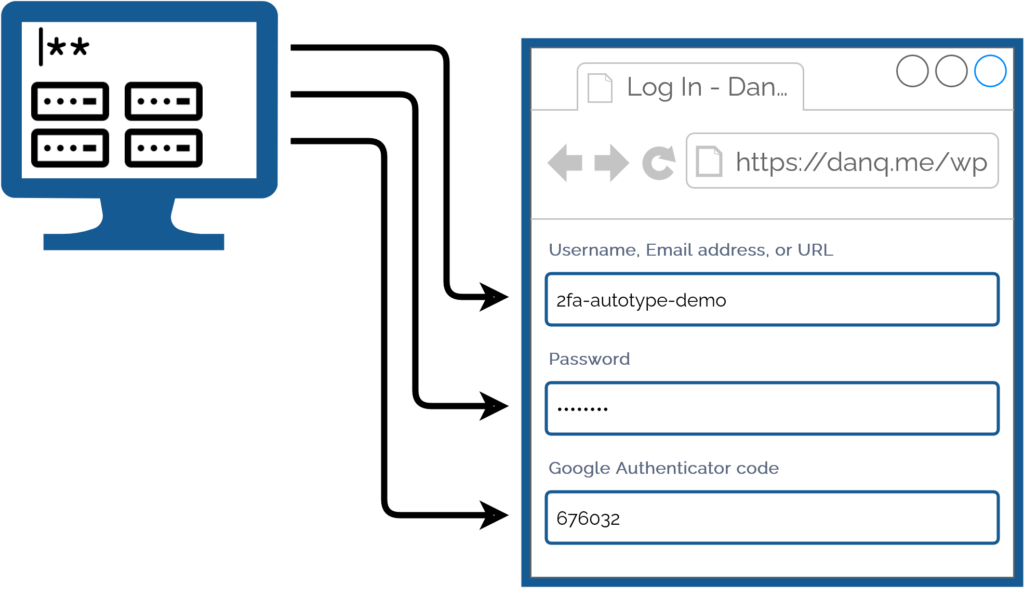
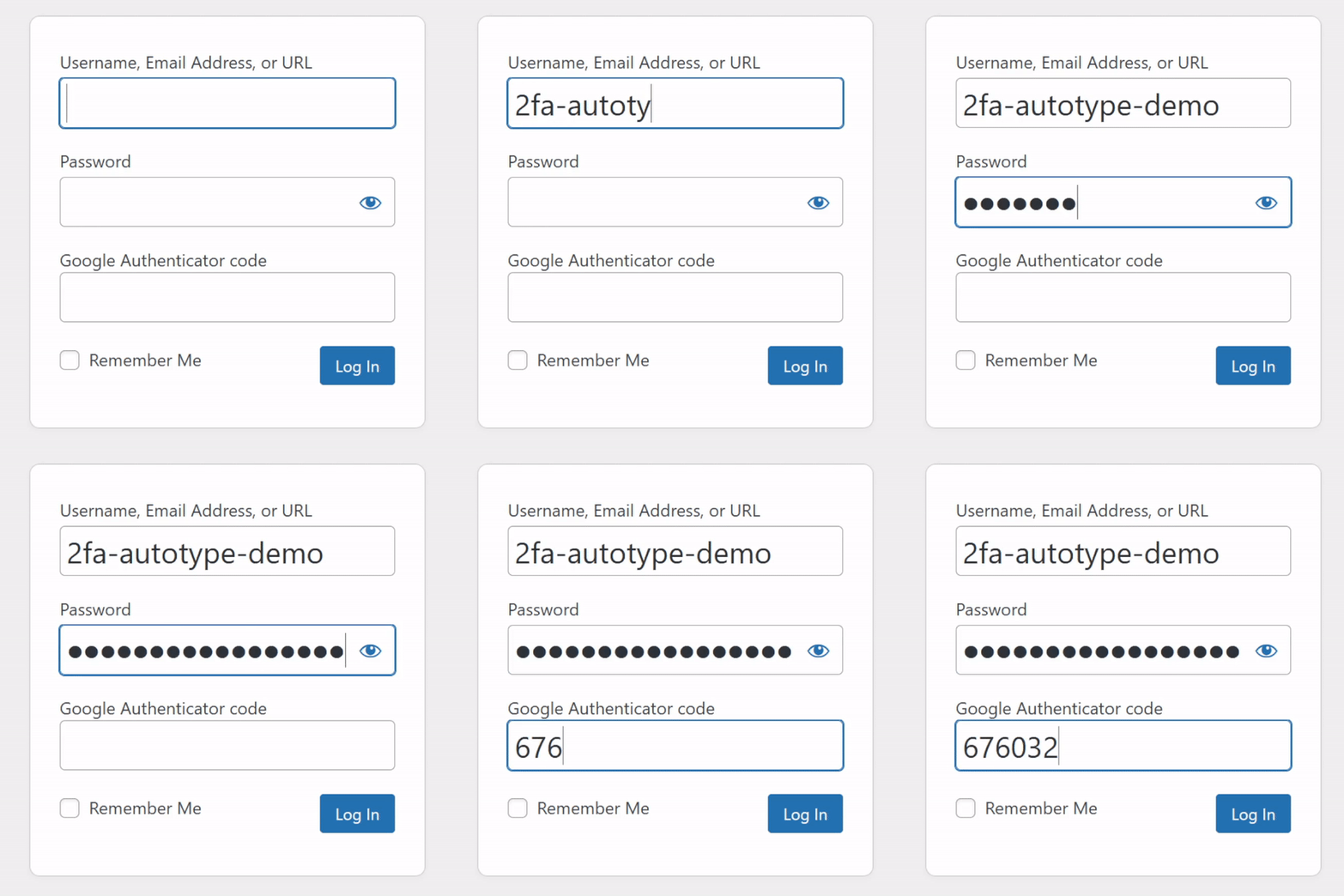
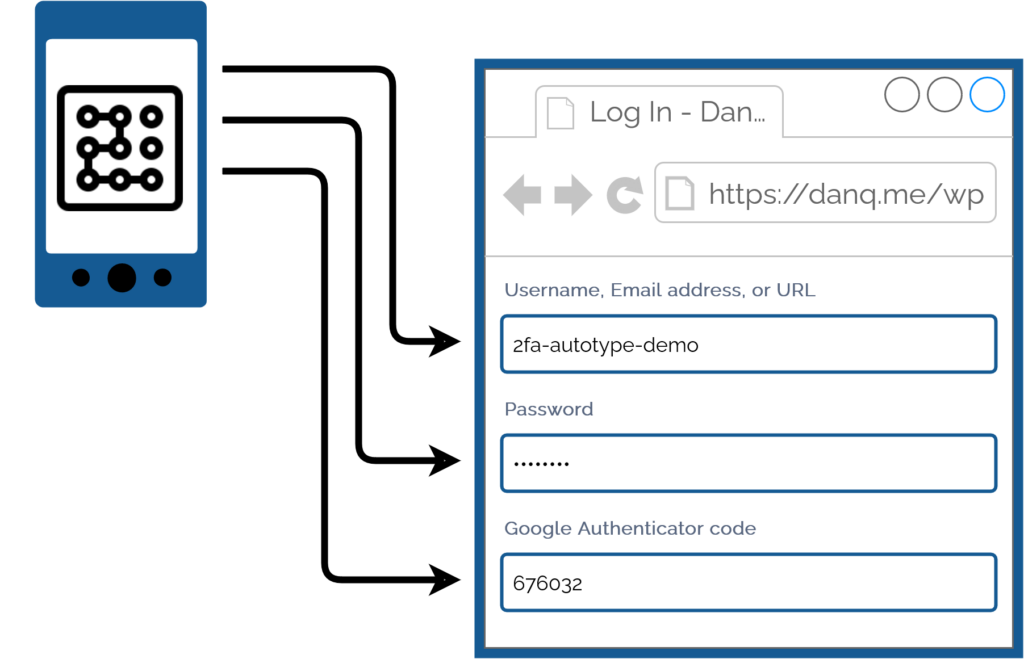
My password manager fills the username, password, and second factor parts of most login forms for me. It feels pretty magical.
I simply press my magic key combination, (re-)authenticate with my password safe if necessary, and then it does the rest. Including, thanks to some light scripting/hackery, many
authentication flows that span multiple pages and even ones that ask for randomly-selected characters from a secret word or similar2.
I love having long passwords and 2FA enabled. But I also love being able to log in with the convenience of a master
password and my fingerprint.
My approach isn’t without its controversies. The argument against it broadly comes down to this:
Storing the username, password, and the means to provide an authentication code in the same place means that you’re no-longer providing a second factor. It’s no longer e.g.
“something you have” and “something you know”, but just “something you have”. Therefore, this is equivalent to using only a username and password and not enabling 2FA at all.
I disagree with this argument. I provide two counter-arguments:
1. For most people, they’re already simplifying down to “something you have” by running the authenticator software on the same device, protected in the same way, as their
password safe: it’s their mobile phone! If your phone can be snatched while-unlocked, or if your password safe and authenticator are protected by the same biometrics3,
an attacker with access to your mobile phone already has everything.
If your argument about whether it counts as multifactor is based on how many devices are involved, this common pattern also isn’t multifactor.
2. Even if we do accept that this is fewer factors, it doesn’t completely undermine the value of time-based second factor codes4.
Time-based codes have an important role in protecting you from authentication replay!
For instance: if you use a device for which the Internet connection is insecure, or where there’s a keylogger installed, or where somebody’s shoulder-surfing and can see what you type…
the most they can get is your username, password, and a code that will stop working in 30 seconds5. That’s
still a huge improvement on basic username/password-based system.6
Note that I wouldn’t use this approach if I were using a cloud-based password safe like those I linked in the first paragraph! For me personally: storing usernames, passwords, and
2FA authentication keys together on somebody else’s hardware feels like too much of a risk.
But my password manager of choice is KeePassXC/KeePassDX, to which I migrated after I realised that the
plugins I was using in vanilla KeePass were provided as standard functionality in those forks. I keep the master copy of my password database
encrypted on a pendrive that attaches to my wallet, and I use Syncthing to push
secondary copies to a couple of other bits of hardware I control, such as my phone. Cloud-based password safes have their place and they’re extremely accessible to people new to
password managers or who need organisational “sharing” features, but they’re not the right tool for me.
As always: do your own risk assessment and decide what’s right for you. But from my experience I can say this: seamless, secure logins feel magical, and don’t have to require an
unacceptable security trade-off.
Footnotes
1 Not all authentication looks like this, for me, because some kinds of 2FA can’t be provided by my password safe. Some service providers “push” verification checks to an app, for example. Others use proprietary
TOTP-based second factor systems (I’m looking at you, banks!). And some, of course, insist on proven-to-be-terrible
solutions like email and SMS-based 2FA.
2 Note: asking for a username, password, and something that’s basically another-password
is not true multifactor authentication (I’m looking at you again, banks!), but it’s still potentially useful for organisations that need to authenticate you by multiple media
(e.g. online and by telephone), because it can be used to help restrict access to secrets by staff members. Important, but not the same thing: you should still demand 2FA.
3 Biometric security uses your body, not your mind, and so is still usable even if you’re
asleep, dead, uncooperative, or if an attacker simply removes and retains the body part that is to be scanned. Eww.
4 TOTP is a very popular
mechanism: you’ve probably used it. You get a QR code to scan into the authenticator app on your device (or multiple devices,
for redundancy), and it comes up with a different 6-digit code every 30 seconds or so.
5 Strictly, a TOTP code is
likely to work for a few minutes, on account of servers allowing for drift between your clock and theirs. But it’s still a short window.
6 It doesn’t protect you if an attacker manages to aquire a dump of the usernames,
inadequately-hashed passwords, and 2FA configuration from the server itself, of course, where other forms of 2FA (e.g. certificate-based) might, but protecting servers from bad actors is a whole separate essay.
This last month or so, my digital life has been dramatically improved by Syncthing. So much so that I want to tell you about it.
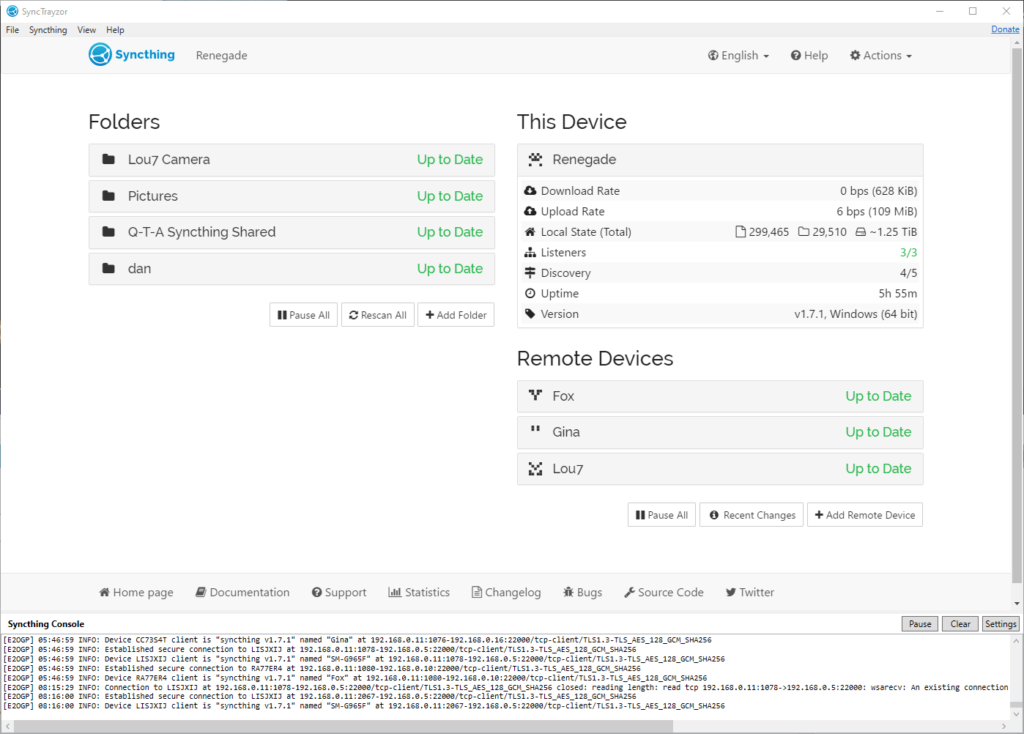
1.25TiB of data is automatically kept in sync between (depending on the data in question) a desktop PC, NAS, media centre, and phone. This computer’s using the Synctrayzor system tray app.
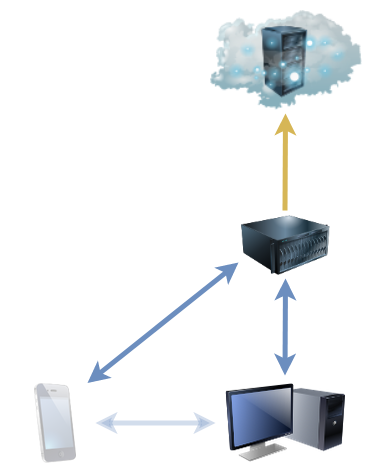
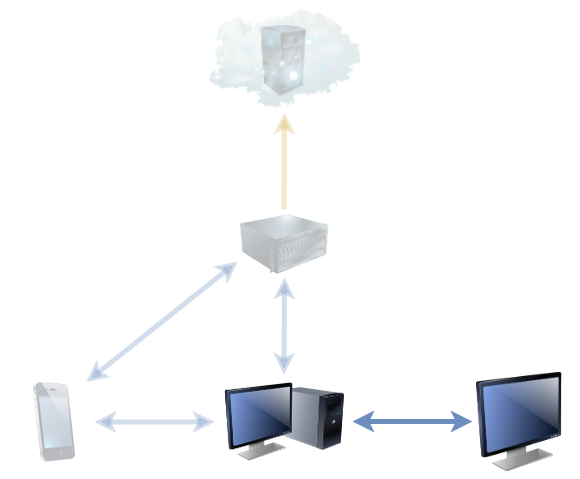
I started using it last month. Basically, what it does is keeps a pair of directories on remote systems “in sync” with one another. So far, it’s like your favourite cloud
storage service, albeit self-hosted and much-more customisable. But it’s got a handful of killer features that make it nothing short of a dream to work with:
The unique identifier for a computer can be derived from its public key. Encryption comes free as part of the verification of a computer’s identity.
You can share any number of folders with any number of other computers, point-to-point or via an intermediate proxy, and it “just works”.
It’s super transparent: you can always see what it’s up to, you can tweak the configuration to match your priorities, and it’s open source so you can look at the engine if you like.
Here are some of the ways I’m using it:
Keeping my phone camera synced to my PC
I’ve tried a lot of different solutions for this over the years. Back in the way-back-when, like everybody else in those dark times, I used to plug my phone in using a cable to copy
pictures off and sort them. Since then, I’ve tried cloud solutions from Google, Amazon, and Flickr and never found any that really “worked” for me. Their web interfaces and apps tend to
be equally terrible for organising or downloading files, and I’m rarely able to simply drag-and-drop images from them into a blog post like I can from Explorer/Finder/etc.
At first, I set this up as a one-way sync, “pushing” photos and videos from my phone to my desktop PC whenever I was on an unmetered WiFi network. But then I switched it to a two-way
sync, enabling me to more-easily tidy up my phone of old photos too, by just dragging them from the folder that’s synced with my phone to my regular picture storage.
Centralising my backups
Now I’ve got a fancy NAS device with tonnes of storage, it makes sense to use it as a central
point for backups to run fom. Instead of having many separate backup processes running on different computers, I can just have each of them sync to the NAS, and the NAS can back everything up. Computers don’t need to be “on” at a particular
time because the NAS runs all the time, so backups can use the Internet connection when it’s quietest. And in the event of a
hardware failure, there’s an up-to-date on-site backup in the first instance: the cloud backup’s only needed in the event of accidental data deletion (which could be sync’ed already, of
course!). Plus, integrating the sync with ownCloud running on the NAS gives easy access to
my files wherever in the world I am without having to fire up a VPN or otherwise remote-in to my house.
Plus: because Syncthing can share a folder between any number of devices, the same sharing mechanism that puts my phone’s photos onto my main desktop can simultaneously be
pushing them to the NAS, providing redundant connections. And it was a doddle to set up.
Maintaining my media centre’s screensaver
Since the NAS, running Jellyfin, took on most of the media management jobs previously
shared between desktop computers and the media centre computer, the household media centre’s had less to do. But one thing that it does, and that gets neglected, is showing a
screensaver of family photos (when it’s not being used for anything else). Historically, we’ve maintained the photos in that collection via a shared network folder, but then you’ve got
credential management and firewall issues to deal with, not to mention different file naming conventions by different people (and their devices).
But simply sharing the screensaver’s photo folder with the computer of anybody who wants to contribute photos means that it’s as easy as copying the picture to a particular place. It
works on whatever device they care to (computer, tablet, mobile) on any operating system, and it’s quick and seamless. I’m just using it myself, for now, but I’ll be offering it to the
rest of the family soon. It’s a trivial use-case, but once you’ve got it installed it just makes sense.
In short: this month, I’m in love with Syncthing. And maybe you should be, too.