WordArt is still supported… in Microsoft Outlook!

While at work today, debugging a weird edge-case where some emails to Outlook have some unexpected padding, I learned something weird: Microsoft Outlook still (kinda) supports WordArt.

Wait, what’s WordArt?

If you’re too young to remember: when Microsoft Office ’97 came out, it shipped with a feature called WordArt. Basically, these were a somewhat-customisable set of on-demand clip-art-esque text styles that you could apply to your own text.

Screenshot of the Word 2003 WordArt preview window showing a variety of preset styles.
Most of these were as unhinged as PowerPoint’s more-“exciting” transitions… and were overused by exactly the same people, in exactly the same ways.

The ease with which you could make use of these wacky designs meant that, for a while during the late 1990s, you wouldn’t see a poster advertising a school disco nor the front page of a GCSE essay that didn’t feature at least one1 of these colourful eccentricities.

They gradually got phased-out and replaced with more-tasteful tools, but if you used them back in the day then images like the one above are sure to evoke a feeling of nostalgia.

Outlook’s evolution

Even as Microsoft adopted the Web as a platform, they were half-hearted about it. While HTML rapidly became used for things like styling emails as well as Web pages, Microsoft resisted the change, instead favouring two of their own standards in their own email clients. Outlook Express preferred to do “formatted” email using RTF, the format underpinning Microsoft Write, while fully-fledged Outlook effectively used Microsoft Word as its formatting engine2.

Screenshot of Outlook '97 composing a formatted email.
Did you ever notice how Outlook ‘9X/2K had basically the same formatting toolbar as Word? That wasn’t a coincidence: they were using the same underlying formatting engine too!

You can still use RTF in some modern versions of Outlook (but you shouldn’t). But nowadays if you’re typing formatted text in Outlook, you’re almost-certainly creating HTML (albeit probably still using Microsoft Word3).

But this introduced a problem with backwards-compatibility. If Outlook switched to HTML as its default rendering format, what would happen to all the old WordArt? I’m confident that somebody asked this in a meeting at Microsoft in around 2007.

Backwards compatibility

It turns out that Microsoft implemented a whole stack of custom CSS directives, just to support WordArt in Outlook4. For real! You can use CSS like mso-effects-shadow-angledirection: 5400000;5 to put a text-shadow directly below your text or mso-style-textoutline-outlinestyle-dash: longdashdotdotgel; to outline it with a mixture of dots and dashes. And it only works in Outlook. These form part of a translation layer for converting WordArt to and from a HTML-like format6.

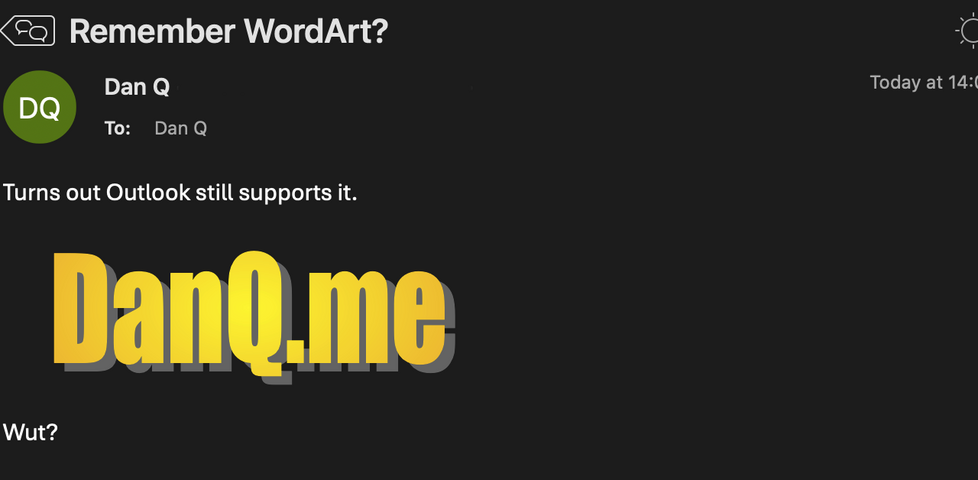
So yeah: you can send an email containing classic WordArt to a modern Outlook installation and it still looks as horrible as it always did:

Screenshot of Outlook on MacOS showing WordArt of the words 'DanQ.me' in an email.

An unanswered question

But you know what I find myself wondering? How do Microsoft’s new, Web-based Office Suite apps handle this?

I assume that if you send them “classic” WordArt from e.g. Outlook ’97, then they render it correctly. But to do that, they’re presumably…

  1. Receiving the original WordArt in whatever proprietary format Word ’97+ used to put these graphics into emails.
  2. Converting the WordArt to mso-prefixed CSS directives that Outlook 365 can understand.
  3. Converting those custom CSS directives into standards-compliant modern CSS directives that your browser can understand.
  4. Rendering that to the page you see the WordArt in all its… “glory”.

That seems like an insane amount of work, but it might not be far from reality. The (horrifying) alternative would be that Microsoft maintain a cluster of virtual machines running old versions of Windows, Office, and Internet Explorer, used just to convert WordArt into static images!

Or maybe Outlook 365 for Web finally killed off WordArt for email? I haven’t tested. But if it did… then it was probably about time!

In any case, this was a fun and unanticipated discovery of some long-maintained backwards-compatibility. It brought a smile to my face during the otherwise-tedious task of regression-testing blind-coded changes against a variety of versions of Microsoft Outlook!

Thanks for reading!

Footnotes

1 More-likely, you’re remembering a document that had a stylistically-conflicting pair of WordArts, and that’s why it burned itself into your memory so-well.

2 It’s actually all much more-complicated than that, because of course it is, but it’s close-enough to the truth.

3 This is the source of the problem I’m working on right now: I have an email that looks fine in every other HTML-compliant email client… but Outlook – and, specifically, only Outlook on Windows – mangles a tiny bit of the formatting. Now personally I think that shouldn’t be a problem: HTML was never supposed to be a pixel-precise rendering medium and a little wiggle room should be expected to come as standard (also, most emails ought to be plain text in the first place!): but we’ve a client who’s pickier than that, and they’re the one paying the bills, so I’d better get to looking into this!

4 You’d be forgiven for asking whether they might have instead chosen to spend that time and energy implementing better CSS support in general into their software, instead of making sure that old emails containing WordArt can still be enjoyed in their full graphical glory decades after they were originally sent. But what would I know?

5 Why 5400000, you ask? Well the mso- prefixed CSS directives for Outlook turn out not to use normal-person units like degrees or even radians to measure angles, instead using an unnamed unit representing a sixty-thousandth of a degree each. Presumably for backwards-compatibility reasons. Similarly, opacity is measured in thousandths of a percent, without mentioning the unit. A lot of this stuff is undocumented and nerds are still trying to reverse-engineer it all.

6 This isn’t how I created the headings in this blog post… those were made with the help of some a Codepen by Katherine Kato. If you’re looking for something just as nostalgic but easier to use, Make Wordart is a cool tool!

× × ×

The chair guardian

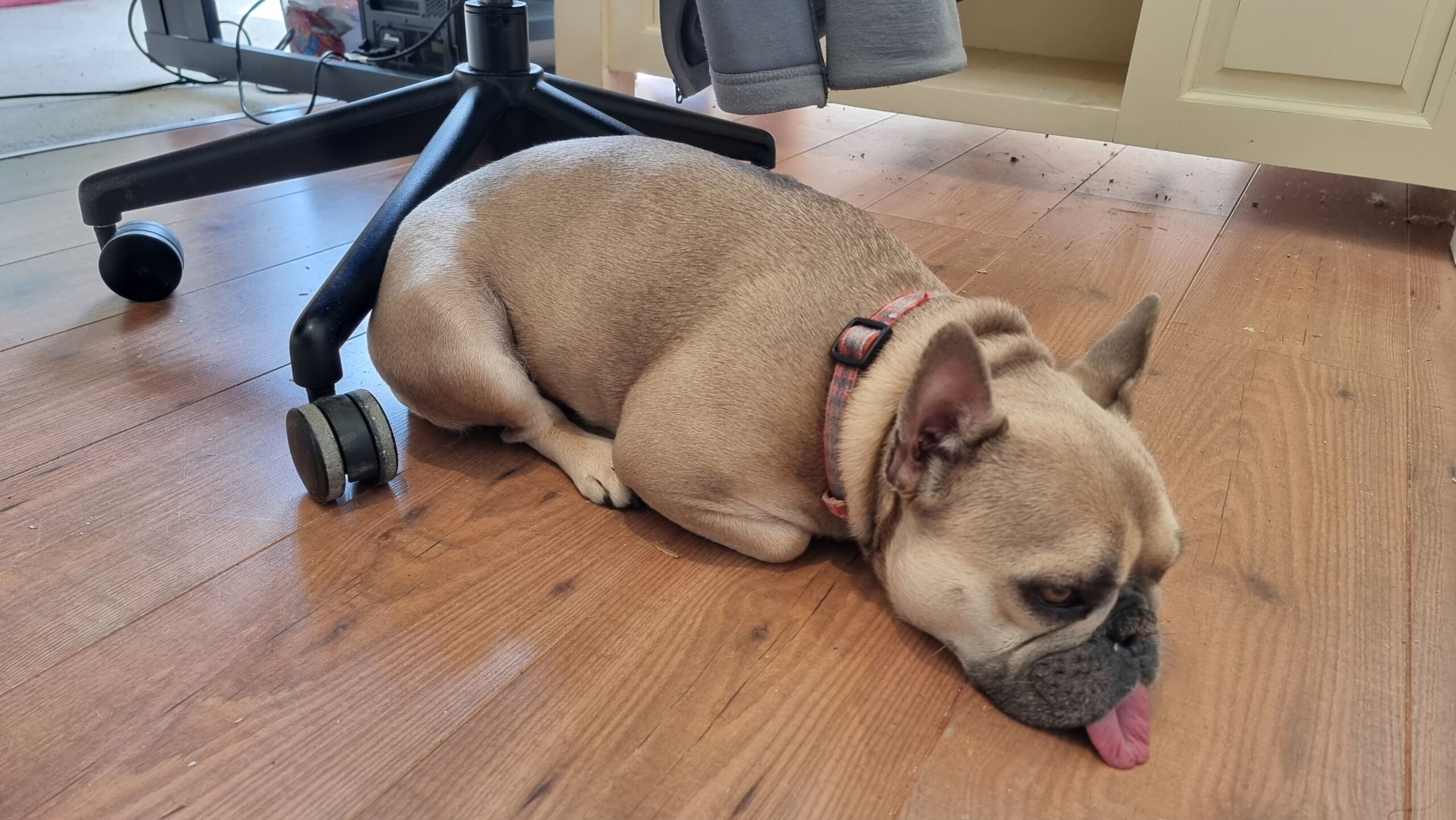
I guess it’s sweet that the dog has decided that I’m not to leave my home office without her noticing.

But when the naps right behind my wheelie chair I worry she’s going to get her paws run over!

A fawn-coloured French Bulldog lies on a laminate floor against the feet of an office chair.

×

Chicory Battlestation

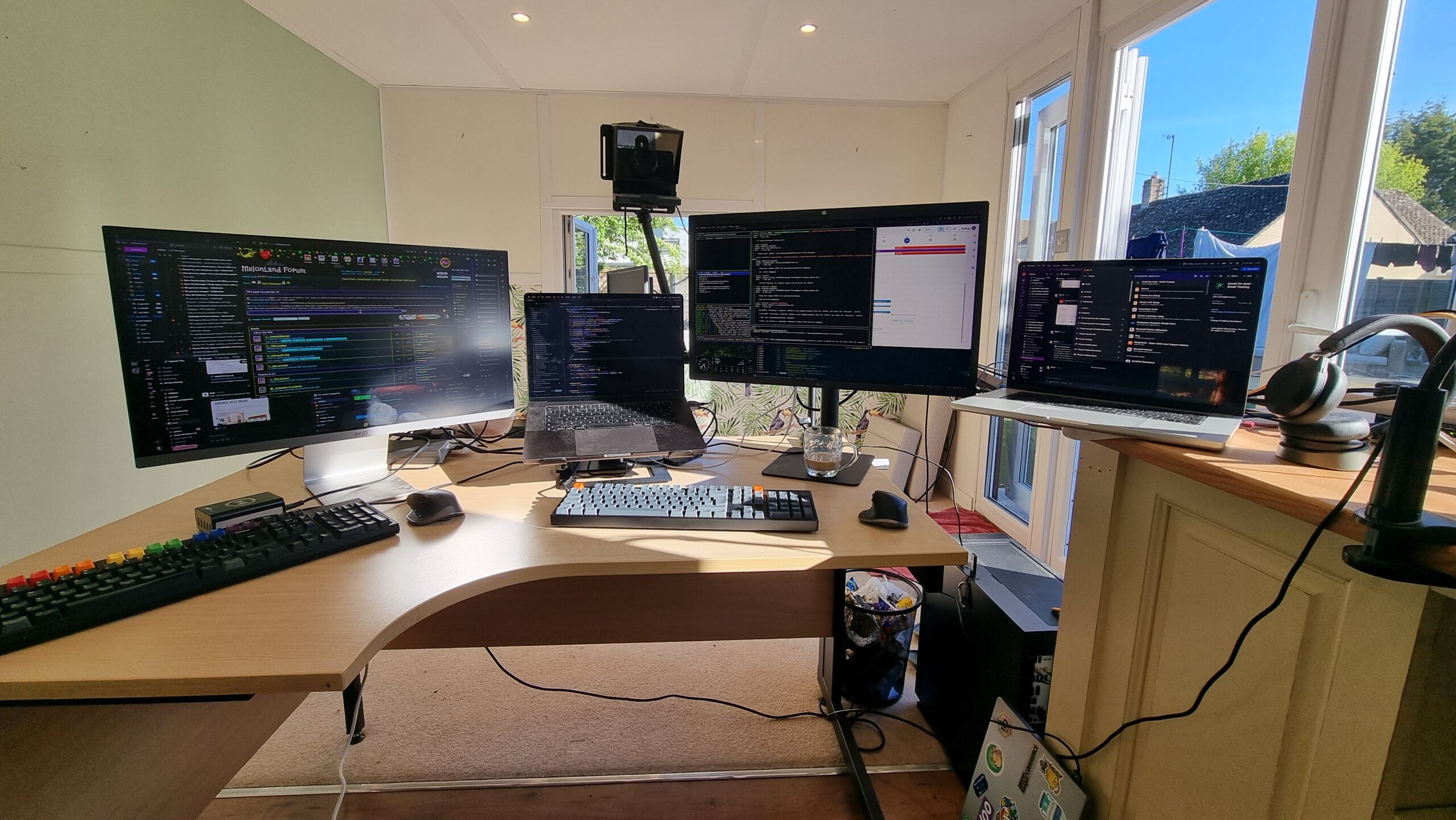
Man, I have missed having a battlestation to work at these last few months. It’s nice to sit at one again, even if it’s only a ‘chicory battlestation’.

Two laptops sit nestled between two large monitors, with a desktop computer on the floor below and a teleprompter/webcam on an arm above, in a brightly-sunlit garden office.

×

Chicory, Coffee, and Code

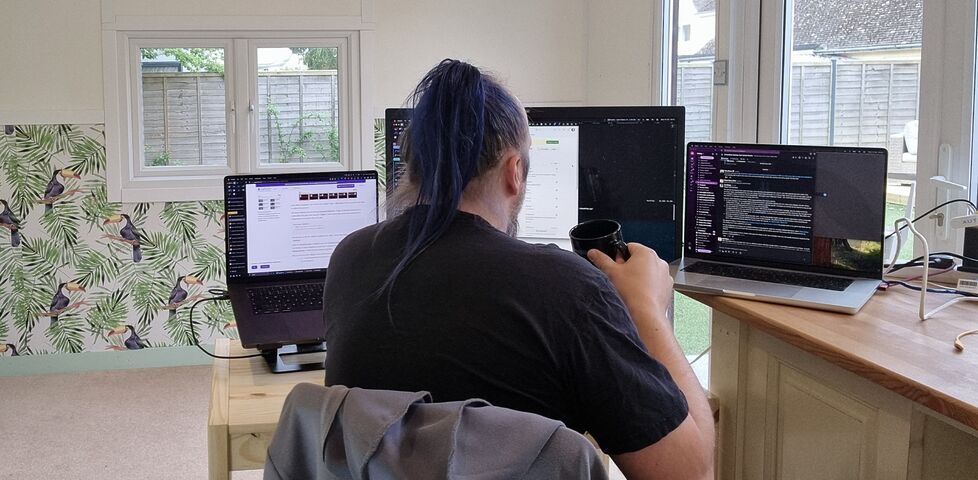
Now that we’ve finished our move into the Chicory House, I have for the first time in over two months been able to set up my preferred coding environment… with a proper monitor on a proper desk with a proper office chair. Bliss!

A white man with blue hair tied up in a ponytail sits at a basic pine desk in a garden office, decorated with wallpaper showing toucans. In front of him are two laptops and a large monitor. He holds a black mug in his hand, as if about to drink from it.

×

Garden Office

I’ve lived in a LOT of different places these last few months while we’ve been arranging a place to live for the next six months or so of our house repairs. Each new AirBnB has had its pros and cons (and each hasn’t felt like “home”).

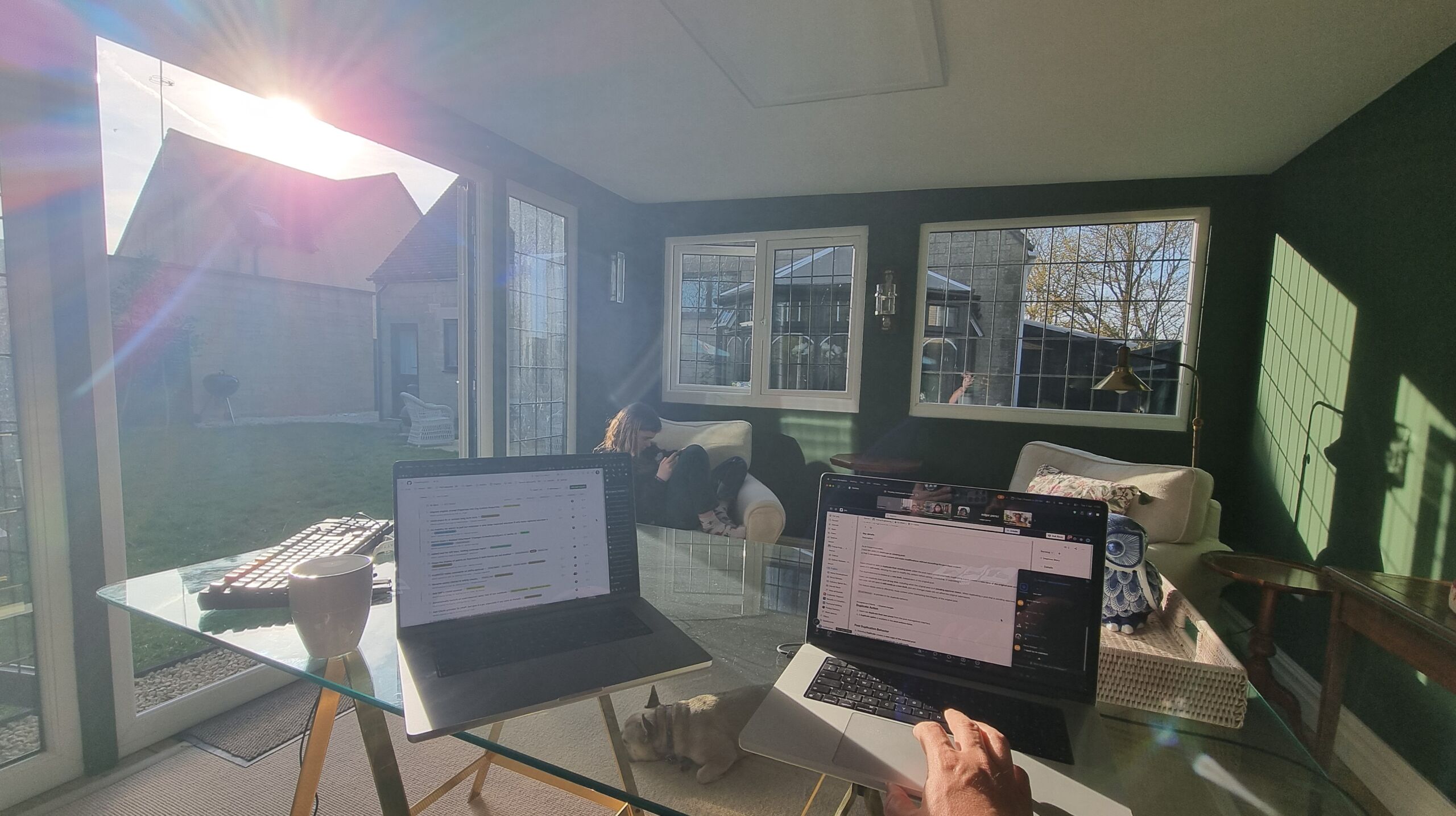
Two laptops on a glass desk in an attractive garden office/summer house, bathed in bright afternoon sunshine.

But man, I really like the “garden office” at our current one. So nice to work in the sun!

(I don’t like the slow WiFi as much, but yeah… pros and cons!)

×

SmartRacer

Yesterday lunchtime I finished writing a program that suddenly makes our working day that little bit more exciting – SmartRacer.

SmartRacer running in the System Tray

SmartRacer runs quietly in the system tray of as many users want to run it – currently Matt, Haagen, Gareth and me… but I’m trying to get Alex involved, too.

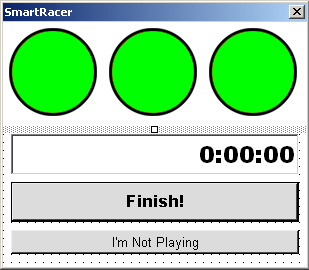
When you click on the system tray icon, the race begins! A couple of quick UDP broadcast packets are passed around the network, and everybody on the subnet who’s running the program is presented with racing-style “start lights”… 3… 2… 1… GO!

SmartRacer popup showing countdown lights. Let's race!

At this point, all participants will race – on their wheely-chairs – around the central ‘island’ of tables, in a clockwise direction, and attempt to be first to return to their own place and click the “Finish” button. Overtaking is rare – but permitted – and usually quite aggressive. As each player returns to their desk a “score” table is presented to everybody, with all participants times appearing in ‘minutes’ (heh), ‘seconds’, and ‘hundredths’.

Map of the office showing the approved race circuit.

Of course, players can choose not to participate in any particular race by clicking the “I’m Not Playing” button. The wimps.

You can download SmartRacer here, to play at your own workplace – SmartRacer.exe (64kb). It runs on Windows 98/ME/2000/XP/2003, and requires the Microsoft .NET Framework.

× × ×

Butterfingers

Butterfingers gave me a courtesy call at work this morning to tell me that my juggling gear will be delivered tomorrow. Which is nice.

It’s a stupidly hot day. The office needs desk fans. I’m melting here. I’ve been to the kitchen three times so far just to soak my head/hair from the tap to keep me cool. It’s just evaporating off. I’ve drunk all my mago juice and my cranberry juice.

There’s a storm predicted for Friday. Hopefully this one will actually happen as scheduled and the air temperature and pressure will drop a bit.

My arms are sweaty and sticking to the desk. Gonna take a walk outside.